Funding Requests#
Funding Requests are the core of CODA’s workflow, allowing you to process publication funding and enabling your institution to review and approve those requests systematically. You can access the funding requests over the Request Center navigation item.
Overview#
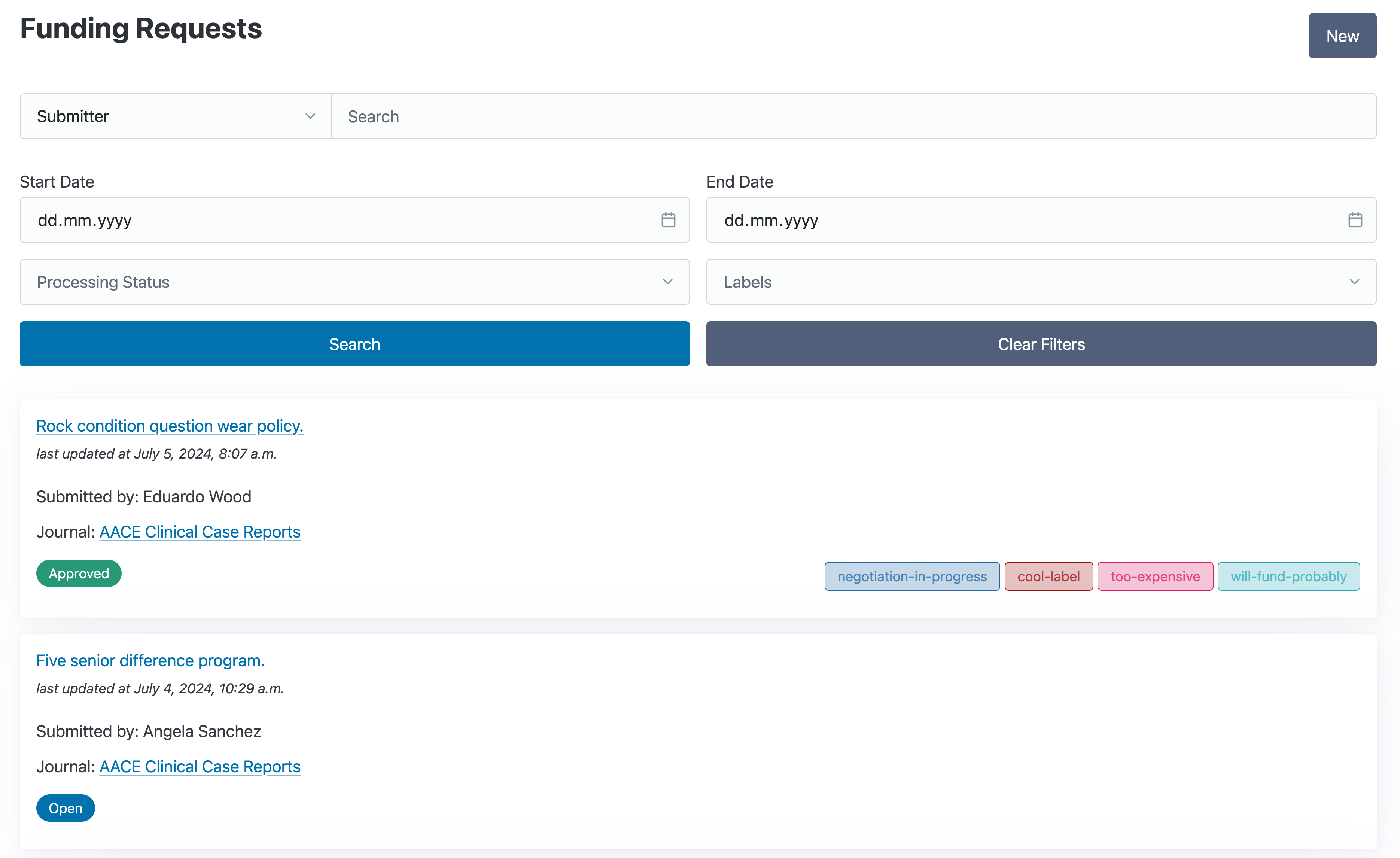
The overview page displays all funding requests with their current status and key information at a glance:
Review Status Badge: Shows whether a request is Open, Approved, Rejected, Costs Waived, or Closed
Publication Details: Title, journal, and publisher information
Payment Status: Whether invoices have been created or paid
Labels: Custom categorization for organizational purposes
The overview provides powerful filtering options to find specific requests:
Filter by review status (Open, Approved, Rejected, Waived, Closed)
Filter by publication type (Article, Monograph)
Filter by payment method (Direct, Reimbursement, Unknown) and payment status (Paid, Unpaid, Invoice received and Coverd by contract)
Filter by open access type
Filter by publication state (Published, Unknown, Submitted, Accepted, Rejected)
Filter by labels (include or exclude specific labels)
Filter by date range
Search by journal, publisher, or contract
Detail View#
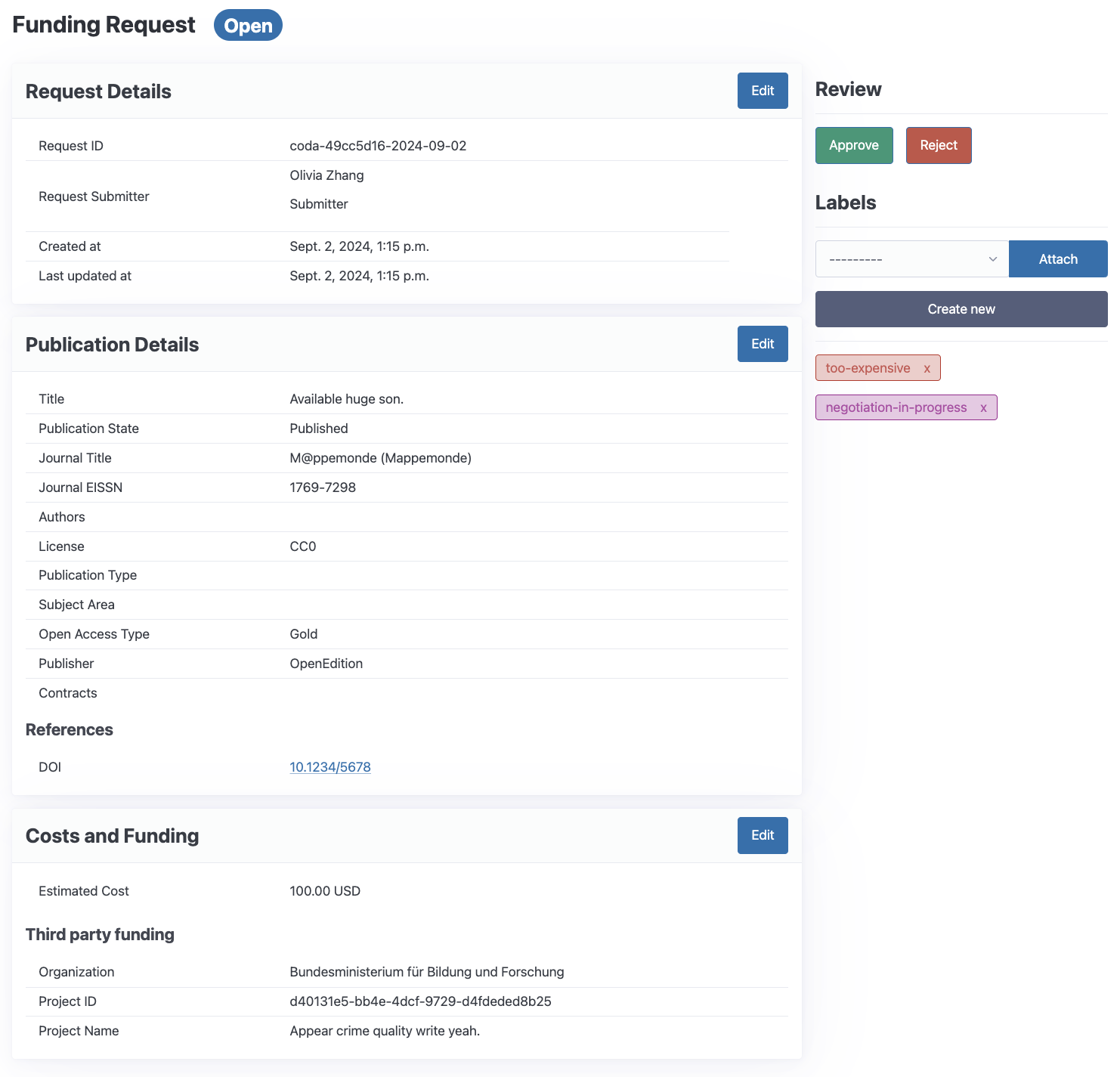
Selecting a funding request from the overview leads to a comprehensive detail page with two main sections:
Request Information (Left Panel)#
The left side displays complete information about the request:
Publication metadata: Title, authors, DOI, license, publication type, subject area, publication state and date(s)
Journal information: Journal name, publisher, E-ISSN, with links to detailed pages
Contract coverage: Whether the publication is covered by an existing contract
Cost details: Estimated publication costs and currency
Payment method: Direct payment, Reimbursement, or Unknown
External funding: Details about third-party funding sources (DFG, BMBF, etc.)
Request submitter: Contact information, ORCID, affiliation, and role
Review Panel (Right Sidebar)#
The right side provides the review workflow:
Review status badge: Current state of the request
Automated checks: Results from institutional policy checks (DOAJ, Blocklist, Cost Limit)
Decided funding amount: The approved funding (editable during review)
Reviewer remarks: Notes from the review process
Review button: Opens the full review interface
Payment status: Invoice creation and payment tracking
Labels: Attach or remove labels for categorization
Creating a Funding Request#
CODA provides a step-by-step wizard to create new funding requests. Click one of the New buttons on the overview page to start.
The wizard supports two publication types:
Article: Journal articles (uses the standard wizard); use the button New Article
Monograph: Books, book chapters, and standalone publications; use the button New Monograph
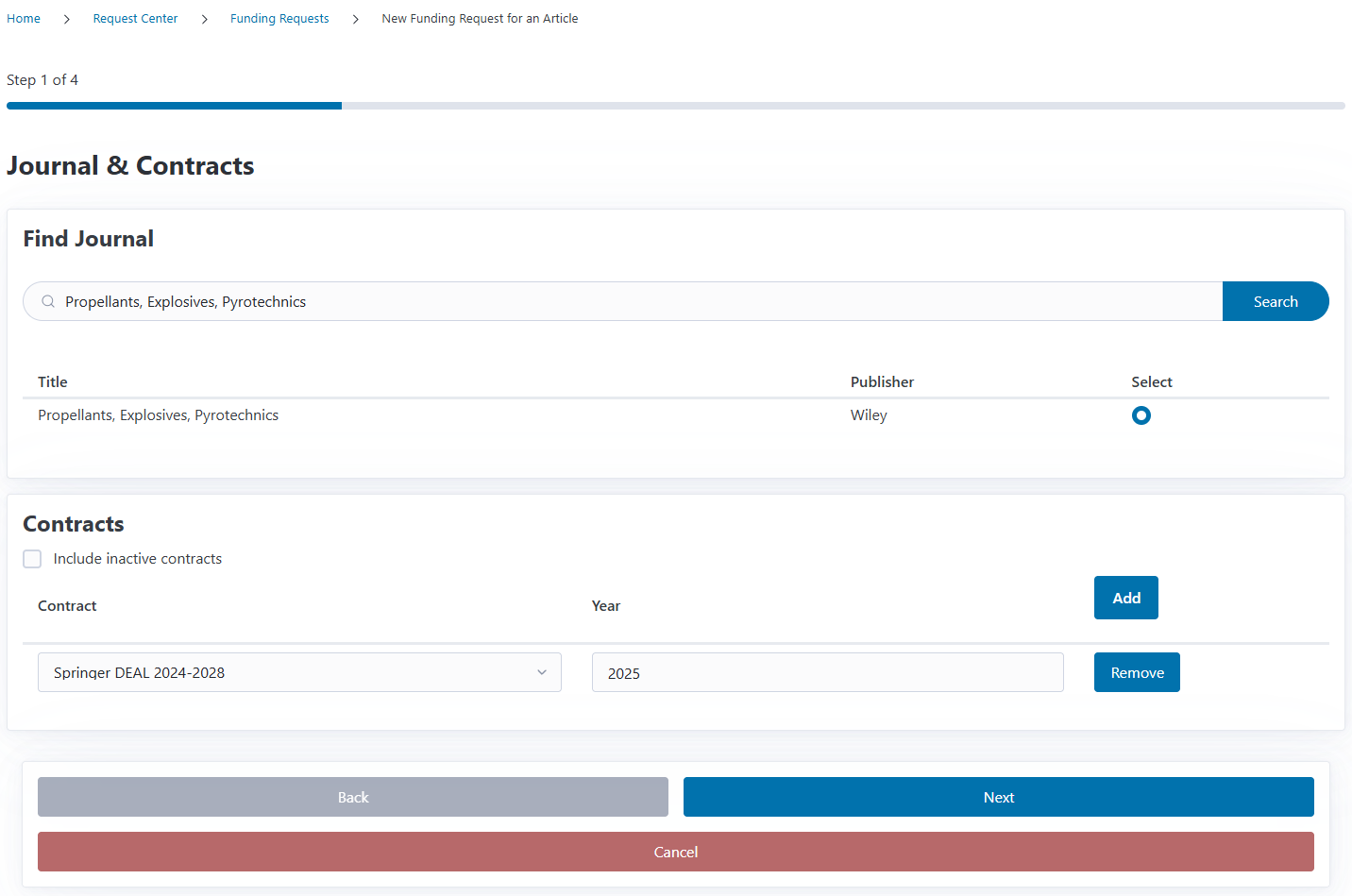
Step 1: Journal/Publisher and Contract#
Search and select a journal from CODA’s database of over 26,000 entries:
Type the journal name to search
Select from the result list
New Journal/Publisher: If the journal or publisher doesn’t exist yet, click the New Journal or New Publisher button to open a modal where you can create it without losing your form data
For monograph requests, you’ll select a publisher instead of a journal.
You can also add a contract to the funding request.
Step 2: Publication Details#
In the second step author information, publication meta data and links (e.g. DOI, ISBN, PMC and more) can be added to the funding request.
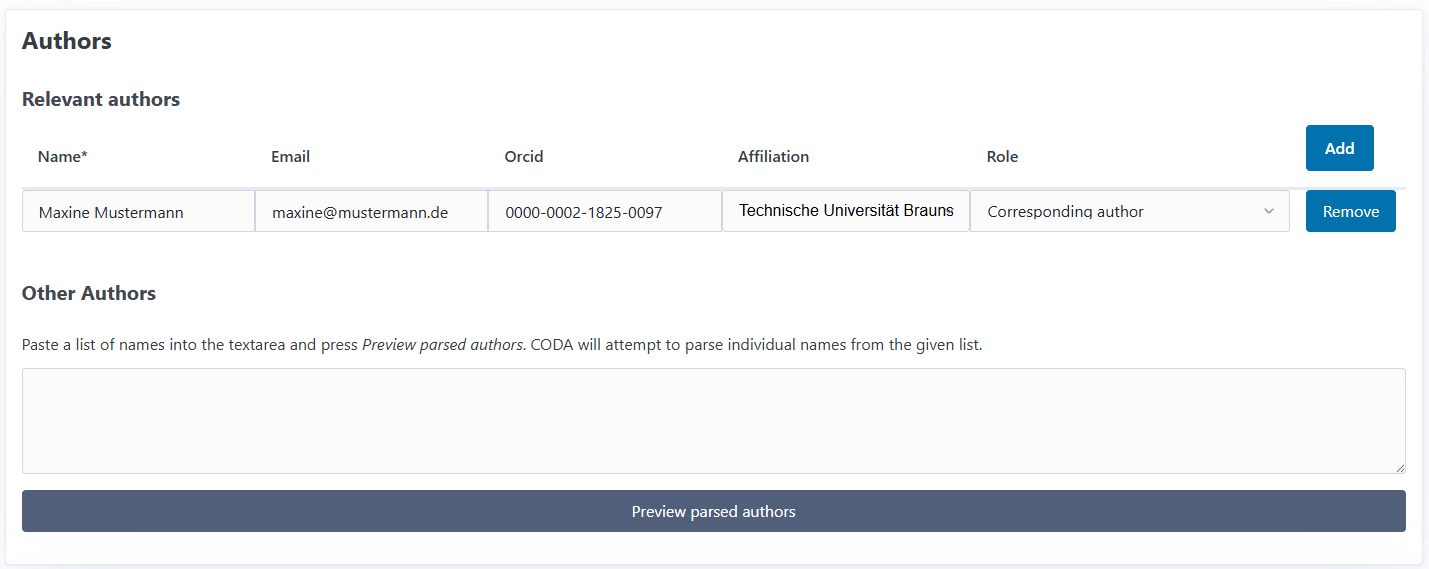
Authors:
Collect information about the authors submitting the request:
Name: Full name of the submitter
Email: Contact email address
ORCID: Optional ORCID identifier for researcher identification
Affiliation: Institutional affiliation
Role: The submitter’s role in the publication (e.g., Corresponding Author or Submitter)
You can add one row per author and give the different roles.
Tip
You can copy author information and paste it into the text area and let CODA parse the copied text to structured author data. This feature keeps author information that is not relevant for your process, for instance when many authors contributed, but only the corresponding author is interesting for you.
Publication Metadata:
Record comprehensive metadata about the publication:
Basic Information:
Title: Publication title
License: Open access license (CC BY, CC BY-SA, etc.)
Publication Type: Default is based on COAR Resource Types Vocabulary 3.1; can be edited in the vocabularies.
Subject Area: Default is based on DFG Subject Classification; can be edited in the vocabularies.
Publication Status:
Unknown
Submitted
Accepted
Rejected
Published
Dates:
Online publication date
print publication date
Additional References/Links: You ca add different kinds of identifiers and links related to the publication. For instance DOI, PMC, ISBN, Handle etc. The UI will validate most of the available link types to ensure correct data.
Configurable Vocabularies
The Publication Type and Subject Area fields are based on predefined vocabularies that can be configured by your institution in the vocabularies section. They are then set in the Preferences. By default, CODA uses COAR Resource Types 3.1 and DFG Subject Classification.

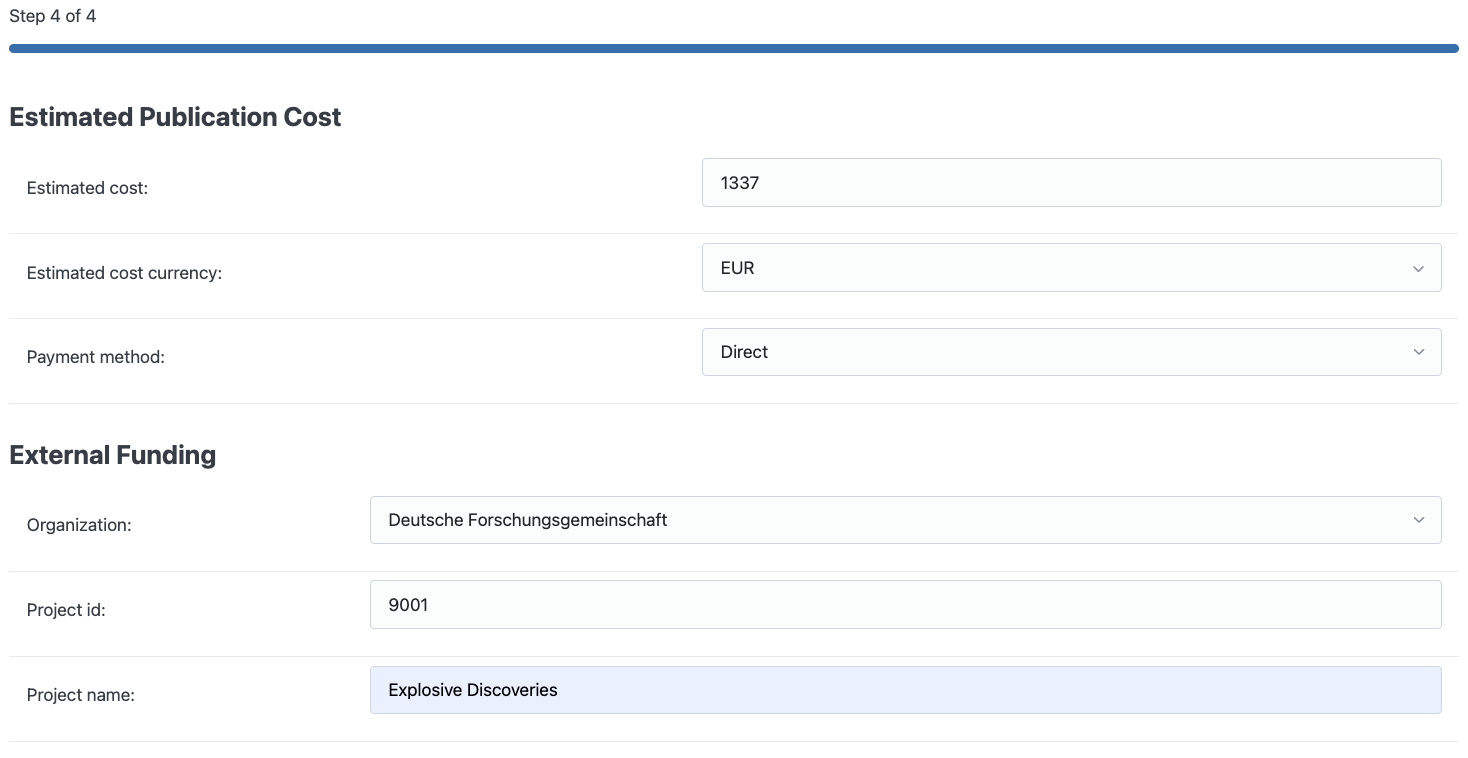
Step 3: Costs & Funding#
In this step you can collect financial information:
Estimated Costs:
Amount: Estimated publication costs
Currency: Select the currency
Payment Method: Direct, Reimbursement, or Unknown
External cost splitting: Tick this box to show that you shared costs with an external partner institute. This information is relevant for an openCost report.
External Research Funding:
Add information about third-party funding sources supporting this publication:
Funding Organization: Select from pre-configured funders (e.g. DFG, BMBF, etc.)
New Funder: If the funding organization doesn’t exist yet, click the Create New Funding Organization button to open a modal where you can create it without losing your funding request data
Project ID: Grant or project identifier
Project Name: Full project name
You can add multiple funding sources if the publication is supported by several grants. When you create a new funding organization via the modal, it becomes immediately available in all funding organization dropdowns in your form, allowing you to select it for any funding row.
Note
As the final costs of a publication are not always known when a funding request comes in, CODA allows you to provide an estimate. This is useful during review to determine whether costs exceed funding limits and whether negotiation with publishers may be necessary.
Step 4: Additional contact information#
In this final step you can provide additional contact information regarding the funding request besides the authors information. You can also add notes and remarks.
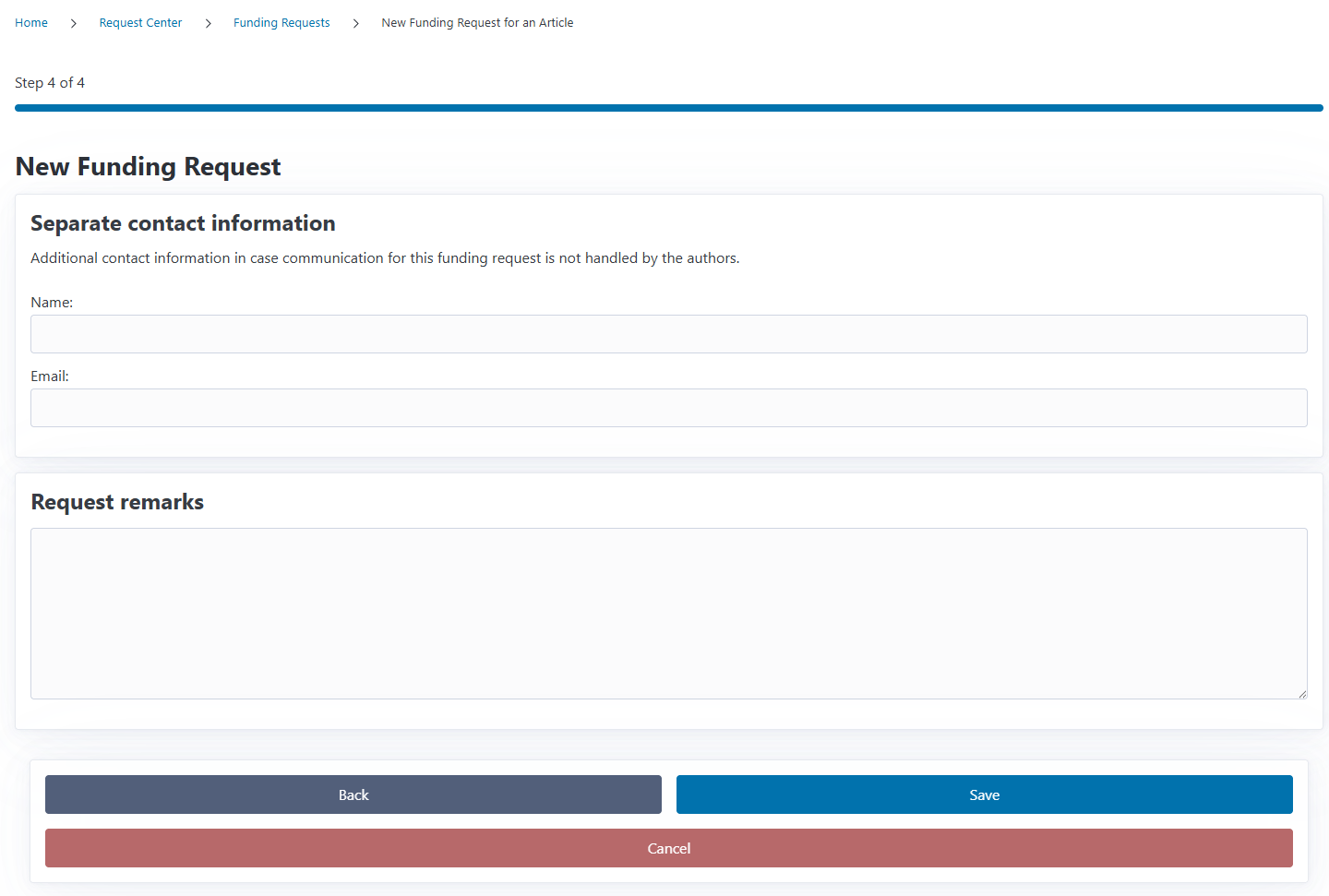
After completing all steps, the funding request is created and ready for review.
Reviewing Funding Requests#
The review process is where you evaluate funding requests and make approval decisions.
Automated Checks#
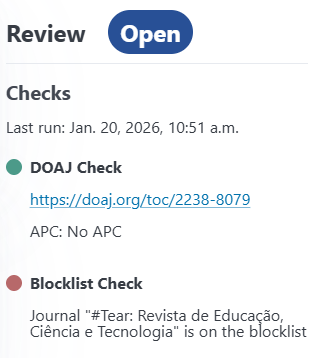
CODA runs automated checks against institutional policies to help guide your decision:
Common Checks:
DOAJ Check: Verifies if the journal is listed in the Directory of Open Access Journals
Success (green): Journal found in DOAJ with link to entry
Failed (red): Journal not listed in DOAJ
Blocklist Check: Checks if the journal or publisher is on your institution’s blocklist
Success (green): Journal and publisher are not blocked
Warning (yellow): Journal is blocked but needs review (6+ months old)
Failed (red): Journal or publisher is actively blocked
Check results provide immediate feedback on potential policy violations, but final approval decisions remain with reviewers. They are displayed in the detail’s page right column.
Review Form#
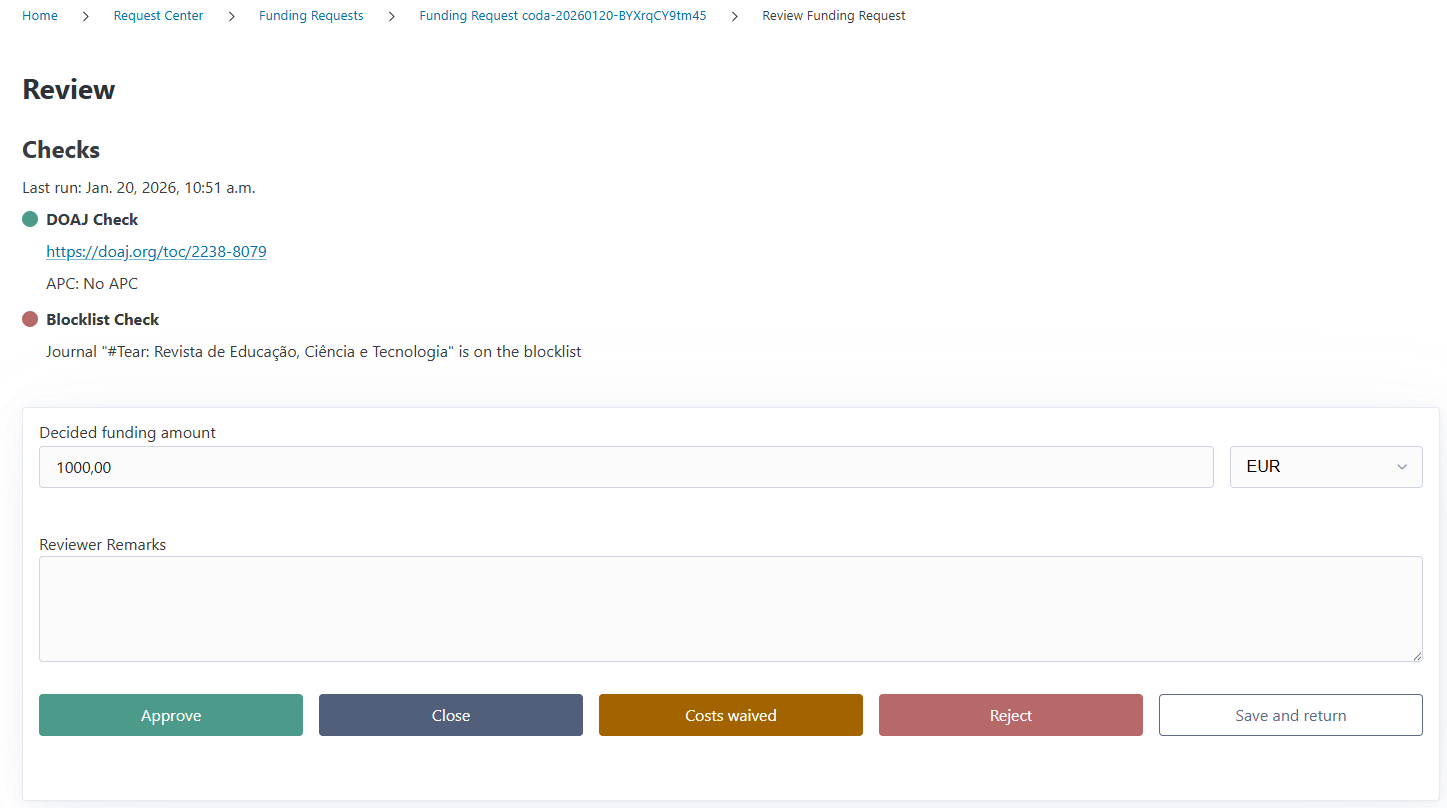
From the funding request detail page, click Submit Review to open the dedicated review interface.
It allows you to:
Set Decided Funding Amount:
Enter the approved funding amount
Select the currency
This can differ from the estimated cost if negotiation occurred
Add Reviewer Remarks:
Record notes about the review decision
Document special circumstances or exceptions
Make a Review Decision:
Approve: Grant funding for the publication
Reject: Deny funding for the publication
Costs Waived: Publication costs are covered elsewhere (e.g., by a contract)
Close: Close the request without approval or rejection
Managing Labels#
Labels provide flexible categorization beyond the standard review workflow.
What Are Labels?#
Labels are custom tags you can attach to funding requests for:
Internal categorization (e.g., “Priority Review”, “Follow-up Needed”)
Workflow management (e.g., “Awaiting Response”, “Invoice Pending”)
Reporting and filtering (e.g., “Special Funds”, “Research Initiative”)
Each label has:
Name: Descriptive text
Color: You can select the color by using a color picker.
Creating Labels#
From the funding request detail page:
In the Labels section of the review panel, click Create new
Enter a name (up to 50 characters)
Pick a color
Click Save
You can also manage (edit and delete) all labels from the dedicated labels page accessible via the Edit Labels Button.
Attaching Labels#
From the funding request detail page:
In the Labels section, select a label from the dropdown
Click Attach
The label appears on the request
Labels are visible on both the detail page and the overview list.
Importing Funding Requests#
CODA supports bulk importing of funding requests from external systems using JSON files. This is useful for:
Migrating from legacy publication tracking systems
Batch importing multiple requests at once
Integrating with external research information systems
Preserving historical data with legacy IDs
Accessing the Import Interface#
Navigate to the funding requests overview and click the Import button.
Import File Format#
Funding requests are imported using JSON files that follow a specific schema. The import file must contain:
A
requestsarray with one or more funding request objectsEach request must include at minimum:
request_date: The date of the request (YYYY-MM-DD format)publication: Publication details including title, type (article/monograph), journal/publisher information
Minimal Example:
{
  "requests": [
    {
      "request_date": "2025-03-19",
      "publication": {
        "title": "My Article Title",
        "kind": "article",
        "license": "CC-BY",
        "eissn": "1234-5678",
        "journal_name": "Journal of Examples",
        "publisher_name": "Example Publisher",
        "open_access_type": "Gold"
      }
    }
  ]
}
Full Example with All Optional Fields:
{
  "requests": [
    {
      "request_date": "2025-03-19",
      "legacy_request_id": "OLD-SYSTEM-ID-123",
      "request_remarks": "Notes about this request",
      "publication": {
        "title": "My Comprehensive Article",
        "kind": "article",
        "license": "CC-BY",
        "eissn": "1234-5678",
        "journal_name": "Journal of Examples",
        "publisher_name": "Example Publisher",
        "open_access_type": "Gold",
        "authors": [
          {
            "name": "Jane Doe",
            "email": "jane.doe@example.com",
            "orcid": "0000-0001-2345-6789",
            "affiliation": "Example University",
            "role": "Corresponding author"
          }
        ],
        "publishing_state": {
          "state": "published",
          "online_publication_date": "2025-03-15",
          "print_publication_date": "2025-04-01"
        },
        "links": [
          {
            "type": "doi",
            "value": "10.1234/example.2025.123"
          }
        ],
        "contracts": [
          {
            "name": "Transformative Agreement 2025",
            "year": 2025
          }
        ],
        "publication_type": {
          "name": "journal article",
          "vocabulary_name": "COAR Resource Types 3.1"
        },
        "subject_area": {
          "name": "Computer Science",
          "vocabulary_name": "DFG Subject Classification"
        }
      },
      "estimated_cost": {
        "amount": 2000.0,
        "currency": "EUR",
        "payment_method": "direct"
      },
      "research_funding": [
        {
          "organization_name": "Deutsche Forschungsgemeinschaft",
          "project_id": "DFG-12345",
          "project_name": "My Research Project"
        }
      ],
      "review": {
        "result": "approved",
        "decided_funding": {
          "amount": 1800.0,
          "currency": "EUR"
        },
        "remarks": "Approved with negotiated discount"
      },
      "labels": ["Priority", "DFG Funded"],
      "seperate_contact": {
        "name": "John Smith",
        "email": "john.smith@example.com"
      }
    }
  ]
}
Import Schema Reference#
The complete JSON schema is available for download here. Key fields include:
Request Level:
request_date(required): Date in YYYY-MM-DD formatlegacy_request_id: Identifier from your old systemrequest_remarks: Notes or comments about the requestlabels: Array of label names (labels are auto-created if they don’t exist)
Publication:
title(required): Publication titlekind(required): Either “article” or “monograph”license: CC-BY, CC-BY-SA, CC-BY-NC, CC-BY-NC-SA, CC-BY-NC-ND, CC-BY-ND, CC0, Unknown, Proprietary, Noneeissn: Electronic ISSN for journal articlesjournal_name: Journal name (auto-creates if doesn’t exist)publisher_name: Publisher name (auto-creates if doesn’t exist)open_access_type: Gold, Diamond, Hybrid, Opt-in, Opt-out, Unknown, Closedauthors: Array of author objectspublishing_state: Publication status and dateslinks: DOIs, PMC IDs, ISBNs, Handles, and other identifierscontracts: Contract associations by name and yearpublication_type: COAR vocabulary conceptsubject_area: DFG classification or custom vocabulary
Estimated Cost:
amount: Numeric value (can be string or number)currency: Three-letter currency code (EUR, USD, GBP, etc.)payment_method: “direct”, “reimbursement”, or “unknown”
Research Funding:
organization_name: Funder name (auto-creates if doesn’t exist)project_id: Grant or project identifierproject_name: Full project name
Review:
result: “open”, “approved”, “rejected”, “waived”, or “closed”decided_funding: Amount and currencyremarks: Reviewer notes
Using the Import Interface#
Prepare your JSON file following the schema
Navigate to the Import page from the funding requests section
Upload your JSON file
Click Save to start the import
Import Behavior#
Auto-Creation of Related Entities:
CODA automatically creates missing related entities during import:
Journals: If a journal with the specified E-ISSN doesn’t exist, it’s created with the provided name and publisher
Publishers: If the publisher doesn’t exist, it’s created
Contracts: Contracts are matched by name and year
Funders: Research funding organizations are created if they don’t exist
Labels: Labels are created with default colors if they don’t exist
Institutions: Author affiliations create institution entries if needed
Review Status:
Imported requests can have any review status:
Import historical approved or rejected requests with their decisions
Import open requests for ongoing review
Include decided funding amounts and reviewer remarks
Validation:
The import validates all data against the schema:
Required fields must be present
Dates must be in YYYY-MM-DD format
Currencies must be valid three-letter codes
Contract years must be positive integers
Publication types and subject areas must match vocabulary concepts if specified
No Automated Checks:
Imported requests bypass automated checks (DOAJ, Blocklist). This allows importing historical data without triggering policy violations. Run manual reviews if needed after import.
Import Results#
After import, you’ll see:
Success Message:
Successfully imported 5 funding request(s).
Partial Success with Errors:
Successfully imported 3 funding request(s).
2 request(s) failed to import. See details below.
Error Details:
If requests fail validation, you’ll see specific error messages:
OLD-ID-123: String should have at least 1 character
OLD-ID-456: Contract with name 'Unknown Contract' and year 2025 not found
Each error references either:
The
legacy_request_idif providedThe publication
titleif no legacy ID exists
Command-Line Import#
For system administrators, CODA provides a command-line import tool:
# Using the shell script
./commands/import.sh --production import_fundingrequests /path/to/requests.json

# Or for local environments
./commands/import.sh --local import_fundingrequests /path/to/requests.json

# Or directly via Django management command
pdm run manage.py import_fundingrequests /path/to/requests.json
This is useful for large batch imports that might timeout in the browser
The command-line import provides the same validation and error reporting as the web interface.