Invoices#
CODA’s invoice management feature helps you track publication costs by modeling the real invoices your institution receives from publishers and service providers. Invoices connect publications to actual financial transactions and enable comprehensive cost tracking with funding source assignments.
Overview#
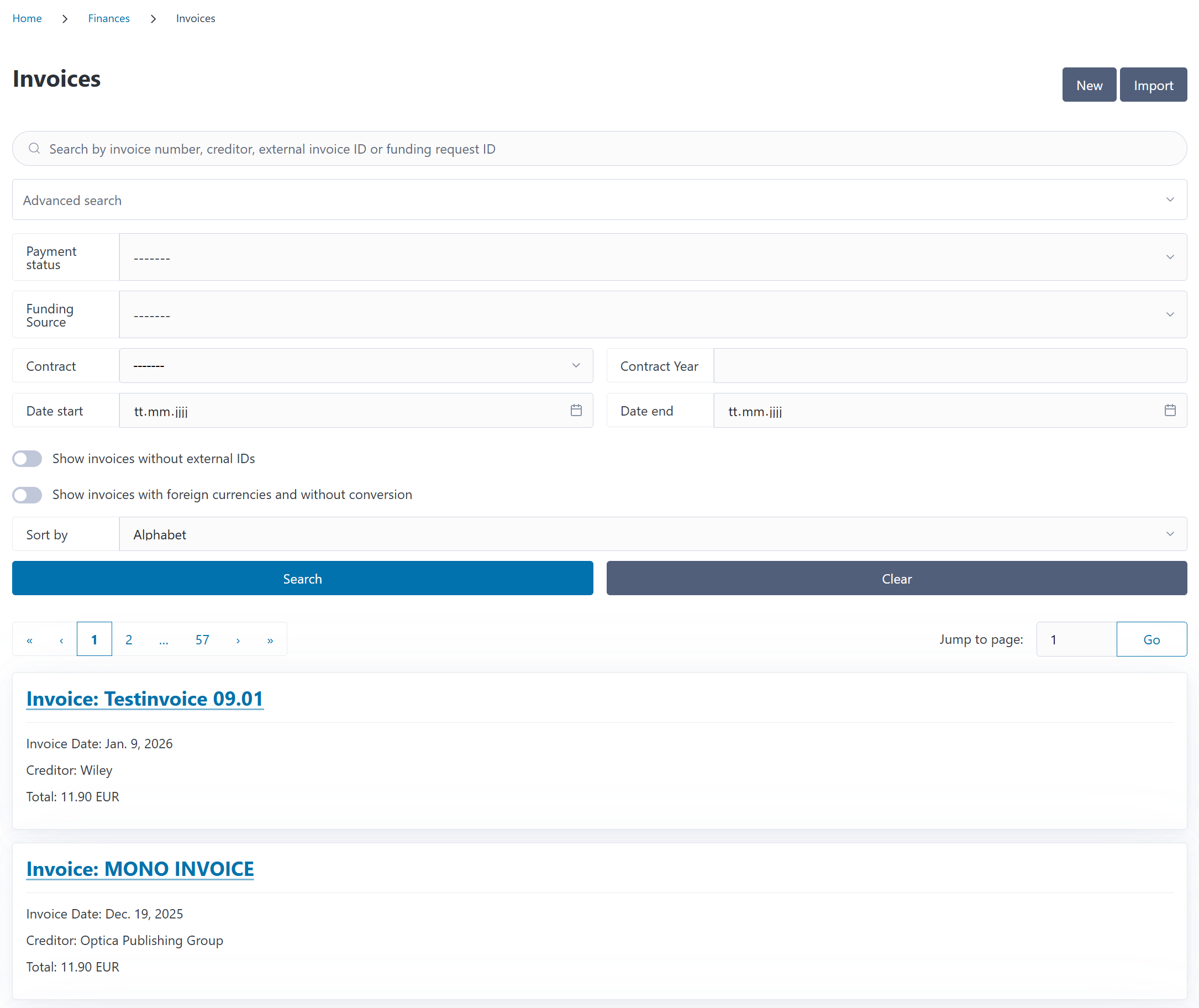
You can access invoices from the Finances section in the navigation menu. The invoice list shows all invoices in your system with their invoice numbers, creditors, dates, payment status, and total costs.
You can search and filter invoices to find specific transactions quickly. An advanced search can be toggled to filter invoices by various criteria.
Understanding Invoice Structure#
An invoice in CODA consists of two main parts:
Invoice Head#
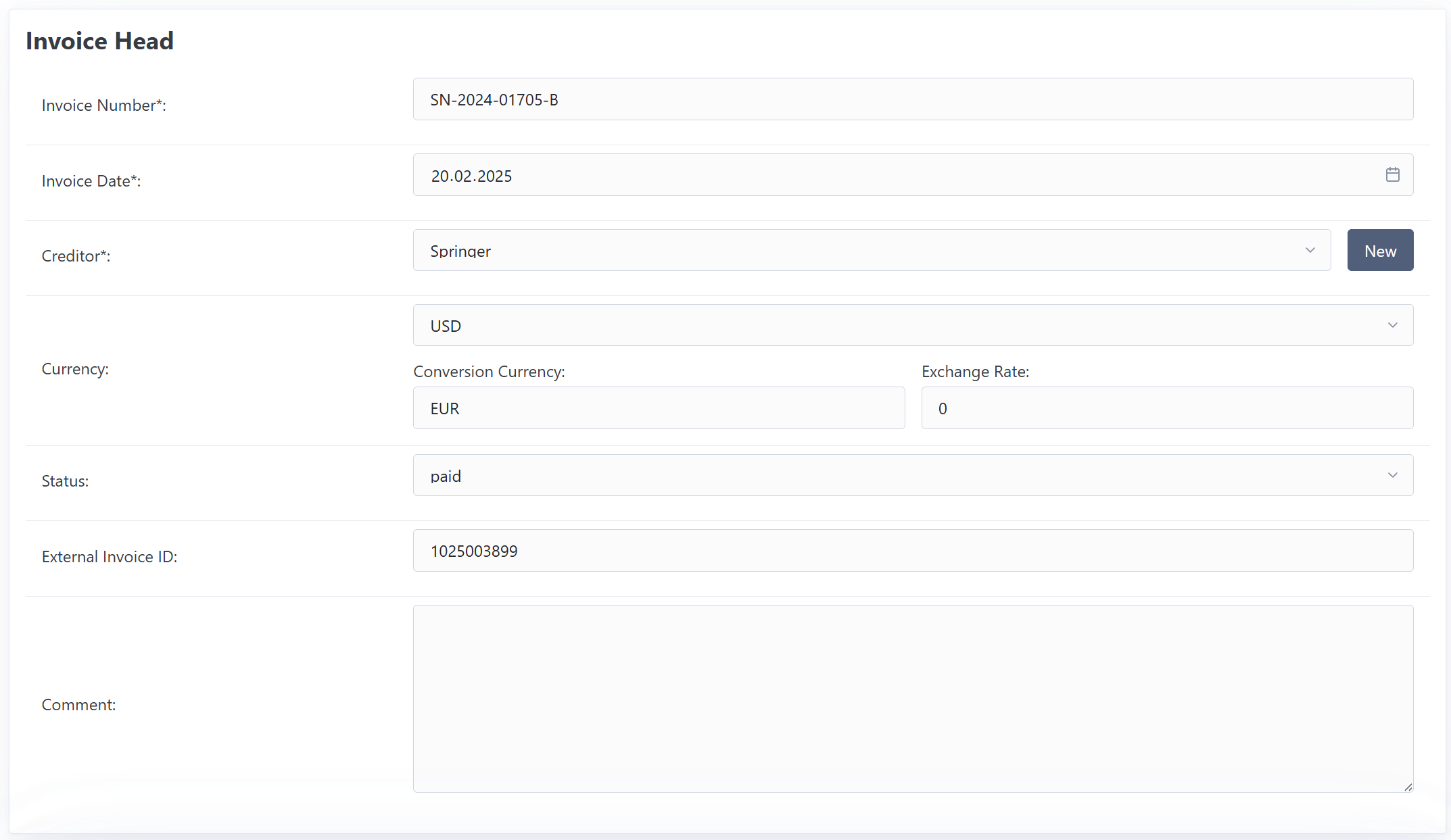
The header contains metadata about the invoice:
Invoice Number: The unique identifier from the creditor (e.g., “INV-2024-12345”)
Invoice Date: When the invoice was issued
Creditor: The organization that sent the invoice (selected from your Creditors list)
New Creditor: If the creditor doesn’t exist yet, click the New button to open a modal where you can create it without losing your invoice form data
Currency: The currency used for all positions on this invoice
Payment Status: Unpaid, Paid or Rejected
External Invoice ID (optional): Reference ID from external systems
Comment (optional): Notes about the invoice
Invoice Positions#
Each invoice contains one or more positions (line items). CODA supports three types of positions:
Publication Positions
Link an invoice position directly to a publication in your system. This is the most common type for Article Processing Charges (APCs).
Contract Positions
Link costs to a publishing contract rather than an individual publication. Used for transformative agreements or consolidated billing arrangements where you pay for the right to publish rather than per-article.
Free Positions
Flexible line items for costs that aren’t linked to specific publications or contracts.
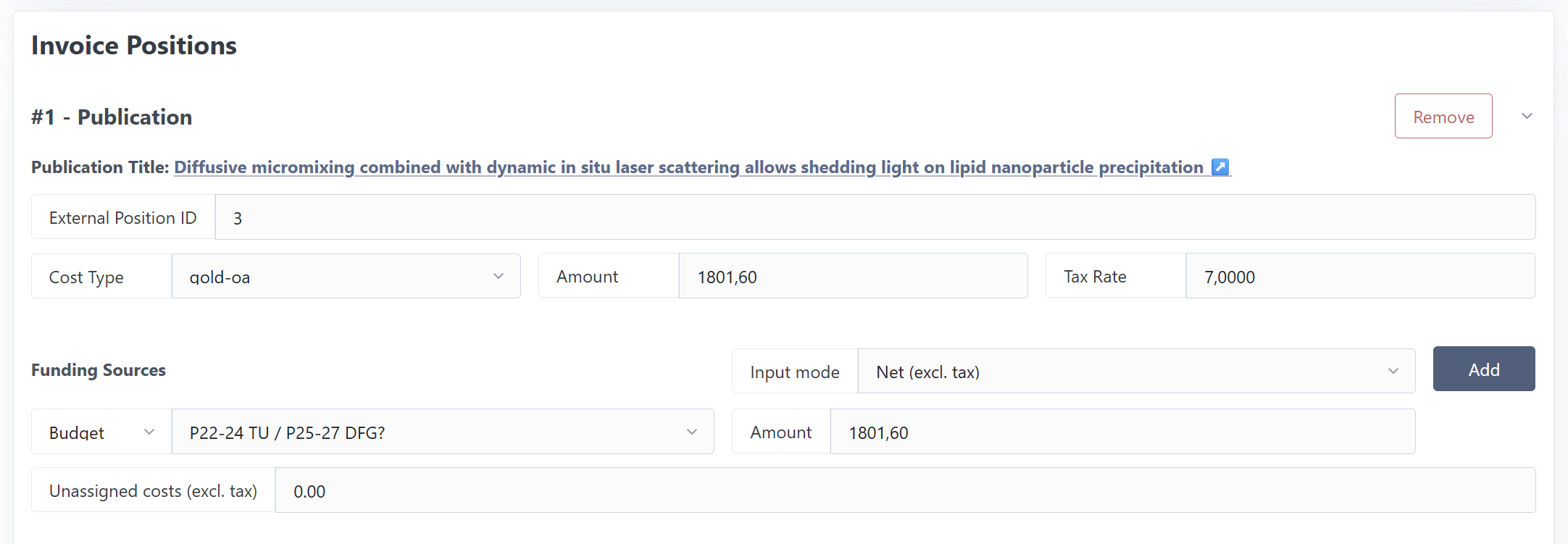
Each position includes:
Cost amount
Tax rate and calculated tax amount
Cost type (from the openCost schema)
Funding sources (optional cost allocation, see funding sources)
External position ID (optional reference ID from external systems)
Creating an Invoice#
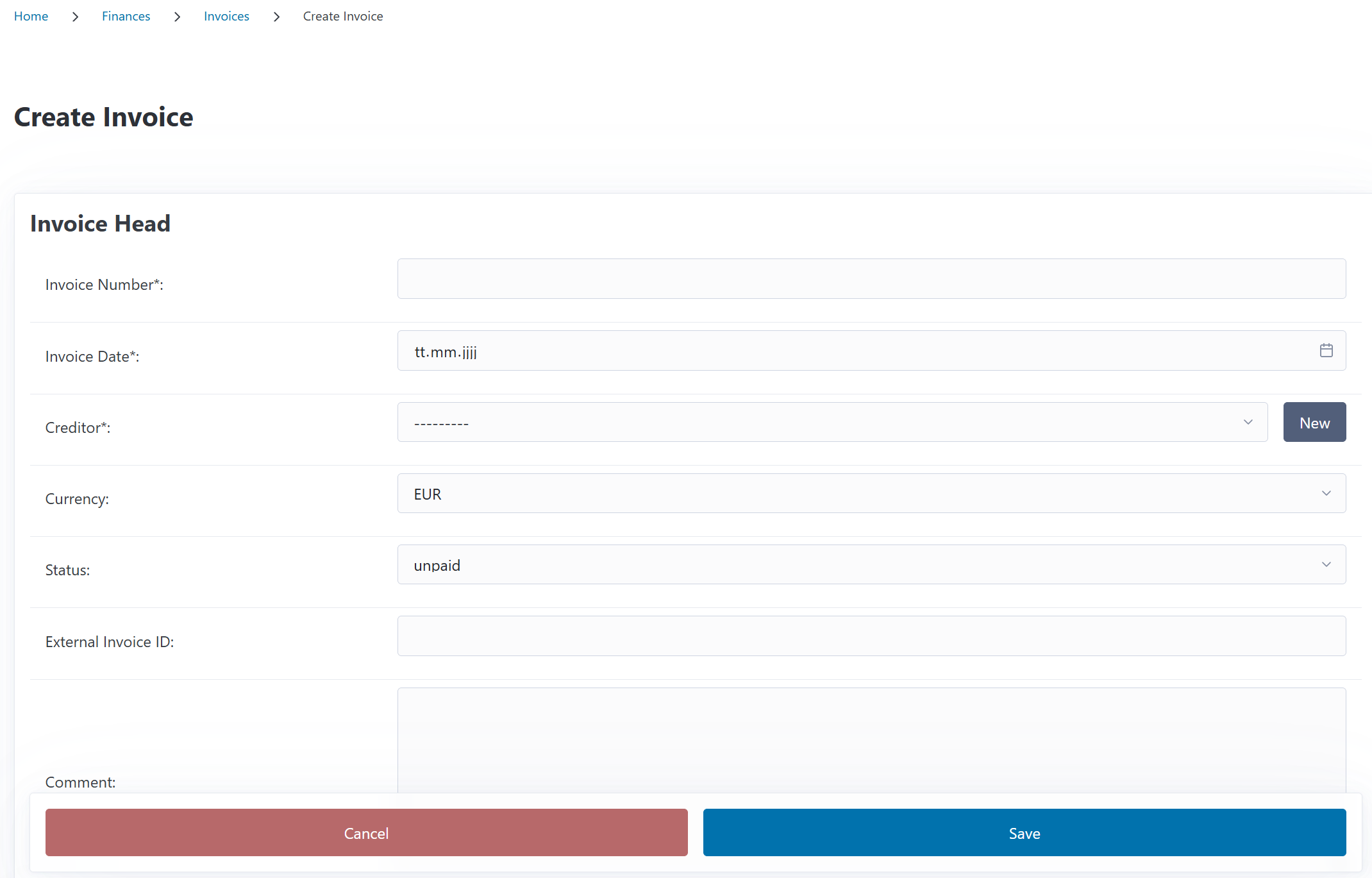
To create a new invoice:
Navigate to Finances > Invoices
Click the New button
Fill in the invoice head information
Add positions (see below)
Click the save button
Adding Publication Positions#
To add a position linked to a publication:
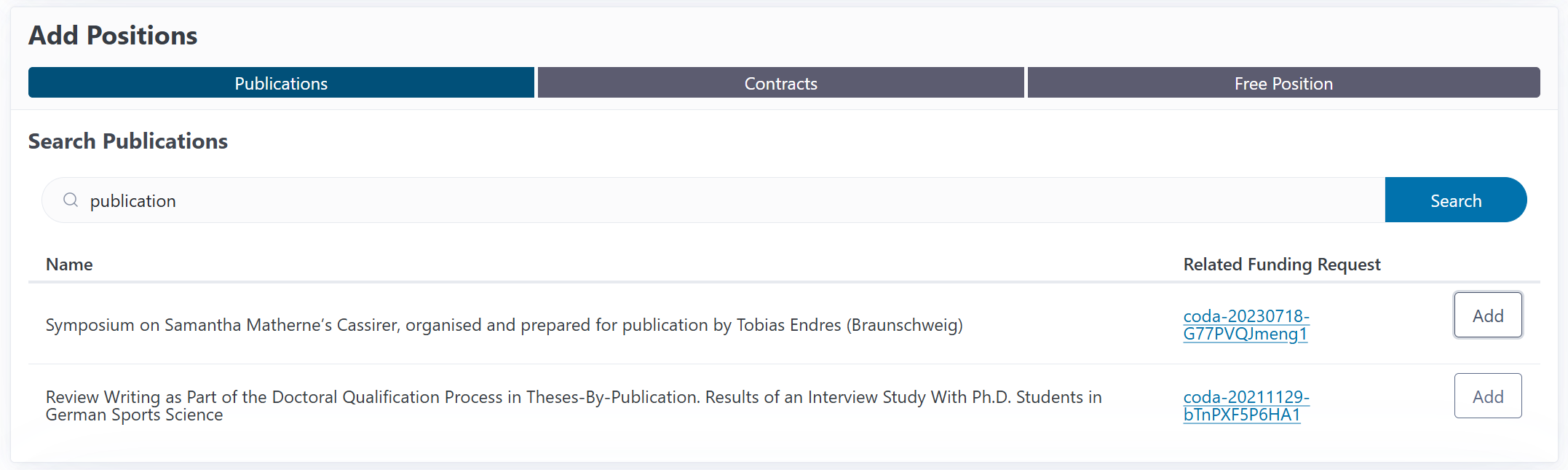
In the Add Positions section, select the Publications tab
Search for the publication by title
Click Add next to the publication you want to invoice
The position is added with:
Automatic title and funding request link
Cost amount (enter the amount charged)
Tax rate (defaults to a configured rate, can be adjusted)
Cost type (select from openCost types like “Publication Charge”)
Multiple publications can be added to the same invoice. Negative amounts can be entered.
Adding Contract Positions#
For invoices related to publishing agreements:
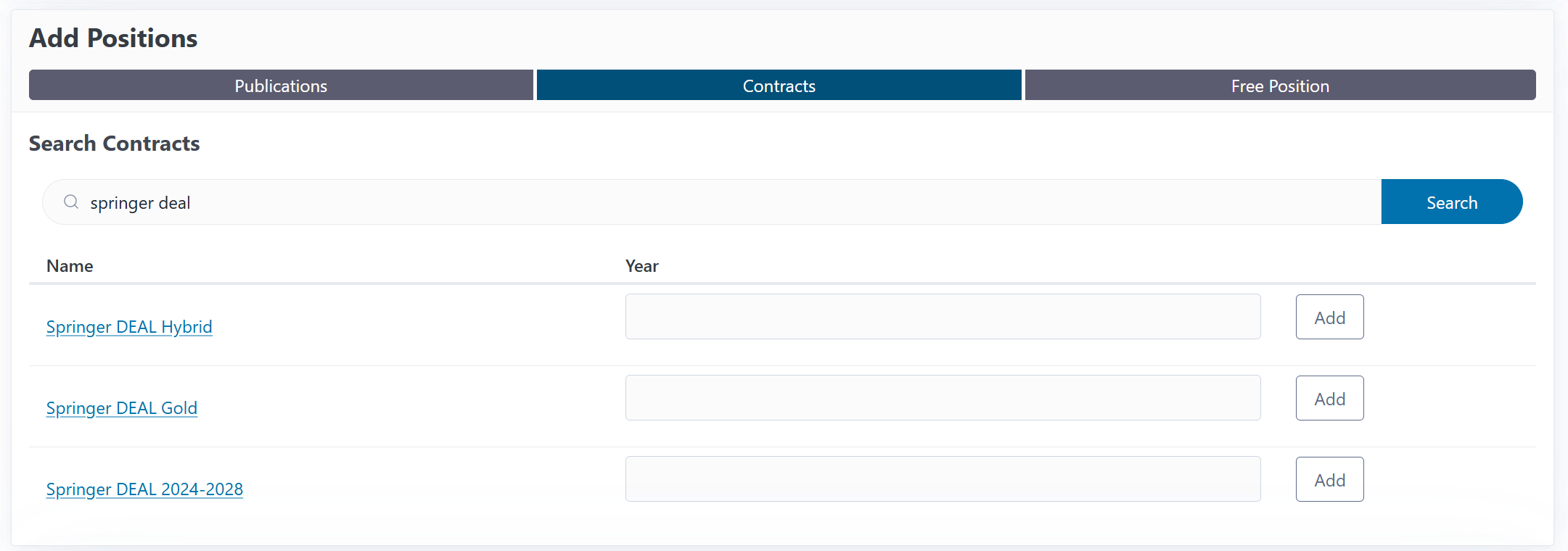
Select the Contracts tab in the Add Positions section
Search for the contract by name
Select the contract year
Click Add
Enter the cost amount and select the cost type
Contract positions are useful when you receive consolidated invoices for multiple publications under a single agreement.
Adding Free Positions#
For other charges not linked to publications or contracts:
Select the Free Position tab
Enter a description
Select the cost type
Enter the amount and tax rate
Click Add
Free positions provide flexibility for all types of publication-related costs.

Assigning Funding Sources#
After adding positions, you can allocate costs to specific funding sources:
Single Funding Source#
To assign all costs to one budget or institution:
Select the funding source type (Budget or Institution)
Choose the specific budget or institution
The value in the amount field will be associated with the selected budget/institution.
Split Costs Across Multiple Sources#
To divide costs between multiple budgets or institutions:
Click Split and CODA will change the interface
For each assignment, add a new row and enter the amount(s)
CODA shows any remaining unassigned costs
You can enter net or gross, CODA will display the amounts according to the mode
Cost Allocation by Institution#
When collaborating with partner institutions:
Select “Institution” as the funding source type
Choose the institution from your Institutions directory
Enter the amount that institution contributes
This is especially useful for multi-institutional publications where costs are shared.
Unassigned Costs Are Allowed
You don’t need to assign all costs to funding sources immediately. CODA allows you to save invoices with partial or no funding assignments, which is useful when budget allocations are still being determined.
However, if you mark an invoice as Paid, all costs must be assigned to funding sources.

Editing Invoices#
To modify an existing invoice:
Open the invoice detail page
Click the Edit button
Update the invoice head information or positions
Add or remove positions as needed
Modify funding assignments
Click Save
Payment Tracking#
CODA tracks three payment states:
Unpaid (default)
The invoice has been received but not yet paid. Funding requests linked to unpaid invoices (by adding publciation positions) are marked as “Invoice Received” in their payment status.
Paid
The invoice has been paid by your institution. Funding requests linked to paid invoices show a “Paid” status.
Rejected Invoices can be marked as rejected when the other two states are not appropriate.
Marking an Invoice as Paid#
Open the invoice detail page
Click Pay Invoice
The status changes to Paid
All linked funding requests are automatically marked as paid
Payment Validation
When marking an invoice as paid, CODA ensures all positions have funding sources assigned. This prevents paid invoices from having untracked budget allocations.
Resetting Payment Status#
If you need to change a paid invoice back to unpaid:
Open the invoice detail page
Click Reset Payment
The status returns to Unpaid
Publications revert to “Invoice Received” status
Viewing Invoice Details#
The invoice detail page shows:
Complete invoice head information
All positions with their types, costs, and funding assignments (as a table)
Payment status with quick actions to pay or reset
Total costs: net, tax, and gross amounts
Currency conversion options (if configured)
Currency Display#
If your invoice includes a currency conversion, you can view costs in different currencies:
Use the Display as currency dropdown
Select the target currency
All amounts recalculate using the specified exchange rate

Importing Invoices#
CODA supports bulk invoice import via JSON files. This is useful for Migrating historical invoice data from legacy systems.
Accessing the Import Interface#
Navigate to Finances > Invoices and click the Import button.
Import File Format#
Invoices are imported using JSON files that follow a specific schema. The import file must contain:
An
invoicesarray with one or more invoice objectsEach invoice must include at minimum:
number: The invoice number (required)date: Invoice date in YYYY-MM-DD format (required)creditor: Creditor name (required, auto-created if doesn’t exist)currency: Three-letter currency code (required)status: Payment status - “paid”, “unpaid”, or “rejected” (required)positions: Array of at least one position (required)
Minimal Example:
{
  "invoices": [
    {
      "number": "INV-2024-001",
      "date": "2024-12-15",
      "creditor": "Example Publisher Ltd",
      "currency": "EUR",
      "status": "unpaid",
      "positions": [
        {
          "type": "free",
          "amount": 2000.00,
          "description": "Article Processing Charge"
        }
      ]
    }
  ]
}
Full Example with All Features:
{
  "invoices": [
    {
      "number": "INV-2024-12345",
      "date": "2024-12-15",
      "creditor": "Academic Publisher Inc",
      "currency": "EUR",
      "status": "paid",
      "external_id": "EXT-12345",
      "comment": "Annual APC invoice with multiple publications",
      "conversion": {
        "target_currency": "USD",
        "exchange_rate": 1.08
      },
      "positions": [
        {
          "type": "publication",
          "amount": 2000.00,
          "tax_rate": 19.00,
          "cost_type": "gold-oa",
          "external_id": "POS-001",
          "request_id": "20241215-ABCD1234",
          "funding_assignments": [
            {
              "type": "budget",
              "name": "Open Access Fund",
              "amount": 1200.00
            },
            {
              "type": "institution",
              "name": "Partner University",
              "amount": 800.00
            }
          ]
        },
        {
          "type": "contract",
          "amount": 50000.00,
          "tax_rate": 19.00,
          "cost_type": "publish",
          "contract_name": "Transformative Agreement 2024",
          "contract_year": 2024,
          "funding_source": "Central Budget"
        },
        {
          "type": "free",
          "amount": 150.00,
          "tax_rate": 19.00,
          "cost_type": "colour charge",
          "description": "Color figure charges",
          "funding_assignments": [
            {
              "type": "budget",
              "name": "Graphics Budget"
            }
          ]
        }
      ]
    }
  ]
}
Import Schema Reference#
The complete JSON schema is available for download here. Key fields include:
Invoice Level:
number(required): Invoice number as stringdate(required): Date in YYYY-MM-DD formatcreditor(required): Creditor name (auto-created if doesn’t exist)currency(required): Three-letter currency code (EUR, USD, GBP, etc.)status(required): “paid”, “unpaid”, or “rejected”external_id: External system reference IDcomment: Notes about the invoiceconversion: Currency conversion with target currency and exchange ratepositions(required): Array of position objects
Position Types:
All positions share these common fields:
type(required): “publication”, “contract”, or “free”amount(required): Cost amount (can be negative for credits)tax_rate: Tax rate percentage (default: 19.00)funding_source: Single funding source name (for backwards compatibility)funding_assignments: Array of funding assignments for cost splittingexternal_id: External system position reference
Publication Position:
request_id: CODA funding request ID (e.g., “20241215-ABCD1234”)legacy_request_id: Legacy system request IDcost_type: “gold-oa”, “hybrid-oa”, “publication charge”, “colour charge”, “page charge”, “permission”, “reprint”, “submission fee”, “payment fee”, “vat”, or “other” (default: “publication charge”)
Contract Position:
contract_name(required): Name of the contractcontract_year(required): Year as integercost_type: “publish”, “read”, or “vat”
Free Position:
description: Descriptive text for the line itemcost_type: Same options as publication position (default: “other”)
Funding Assignments (Cost Splitting):
type: “budget” or “institution” (default: “budget”)name(required): Name of the budget or institutionamount: Specific amount assigned (optional - if omitted, remaining costs are split equally)
Using the Import Interface#
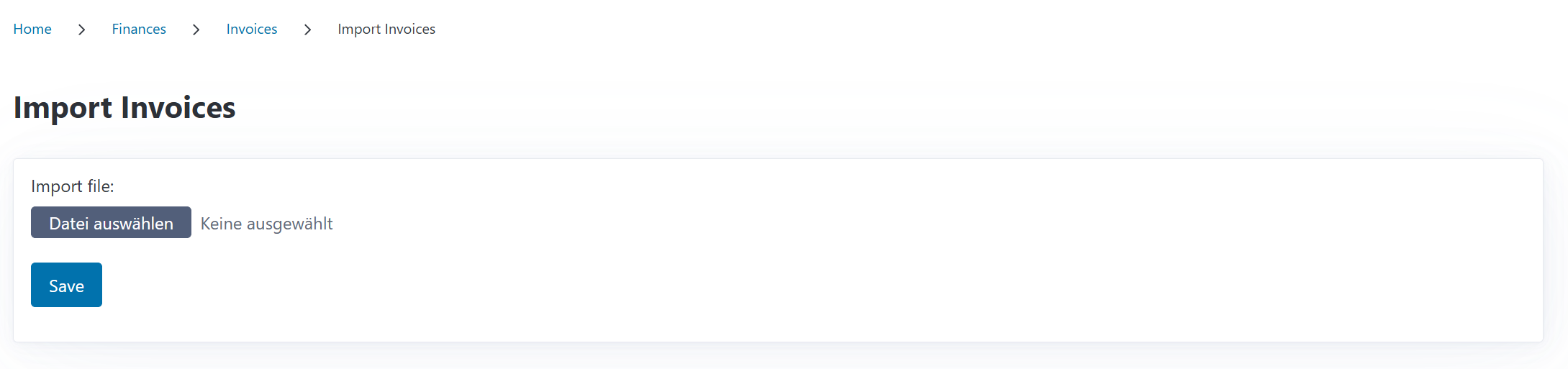
Prepare your JSON file following the schema
Navigate to Finances > Invoices
Click the Import button
Upload your JSON file
Click Save to start the import
Review the import results
Import Behavior#
Auto-Creation of Related Entities:
CODA automatically creates missing entities during import:
Creditors: If a creditor with the specified name doesn’t exist, it’s created
Funding Sources: Budgets are created if they don’t exist
Institution Funding Sources: Matched by institution name; institutions must exist before import
Currency Conversions: Exchange rate conversions are stored with invoices
Duplicate Handling:
Creditors: Matched by exact name (case-sensitive)
Contracts: Must exist with matching name and year, otherwise import fails for that position
Funding Requests: Publication positions require valid request_id or legacy_request_id
Funding Sources: Budget names are unique; institutions are matched by name
Cost Splitting:
Funding assignments support flexible cost allocation:
Explicit Amounts: Specify exact amounts for each funding source
Implicit Splitting: Omit amount field to split remaining costs equally
Mixed Splitting: Combine explicit and implicit - specify some amounts, let CODA split the rest
Validation: Total assigned amounts cannot exceed position cost
Example of mixed splitting:
{
  "amount": 3000.00,
  "funding_assignments": [
    {"type": "budget", "name": "Fund A", "amount": 1000.00},
    {"type": "budget", "name": "Fund B"},
    {"type": "institution", "name": "Partner Uni"}
  ]
}
Result: Fund A gets €1000, Fund B and Partner Uni split the remaining €2000 equally (€1000 each).
Payment Status:
Imported invoices can have any payment status:
Unpaid: Default for ongoing invoices
Paid: Historical invoices that were already paid
Rejected: Invoices that were disputed or cancelled
Validation:
The import validates all data:
Required fields must be present
Dates must be in YYYY-MM-DD format
Currencies must be valid three-letter codes
Cost amounts must be numeric
Tax rates must be valid percentages
Position types must be “publication”, “contract”, or “free”
Funding assignment amounts cannot exceed position costs
Contract years must be positive integers
Import Results#
After import, you’ll see:
Success Message:
Successfully imported 5 invoice(s).
Partial Success with Errors:
Successfully imported 3 invoice(s).
2 invoice(s) failed to import. See details below.
Error Details:
If invoices fail validation, you’ll see specific error messages:
INV-2024-001: Contract 'TA 2024' with year 2024 not found
INV-2024-002: Funding request with ID '20241215-INVALID' not found
INV-2024-003: Total funding assignments (3500.00) exceed position cost (3000.00)
Each error references the invoice number for easy identification.
Command-Line Import#
For system administrators, CODA provides a command-line import tool:
# Using the shell script
./commands/import.sh --production import_invoices /path/to/invoices.json

# Or for local environment
./commands/import.sh --local import_invoices /path/to/invoices.json
This is useful for:
Automated imports from scheduled exports
Integration with CI/CD pipelines
Large batch imports that might timeout in the browser
Scripted data migrations
The command-line import provides the same validation and error reporting as the web interface.
Deleting Invoices#
Currently it is not possible to delete invoices from CODA. Future releases intend to implement a soft delete feature to ensure data integrity.