Funding Sources#
The Funding Sources feature helps you track where money comes from to pay publication costs. By assigning funding sources to invoice positions, you can split costs across different budgets or institutions and understand how publication expenses are distributed across your funding streams.
Overview#
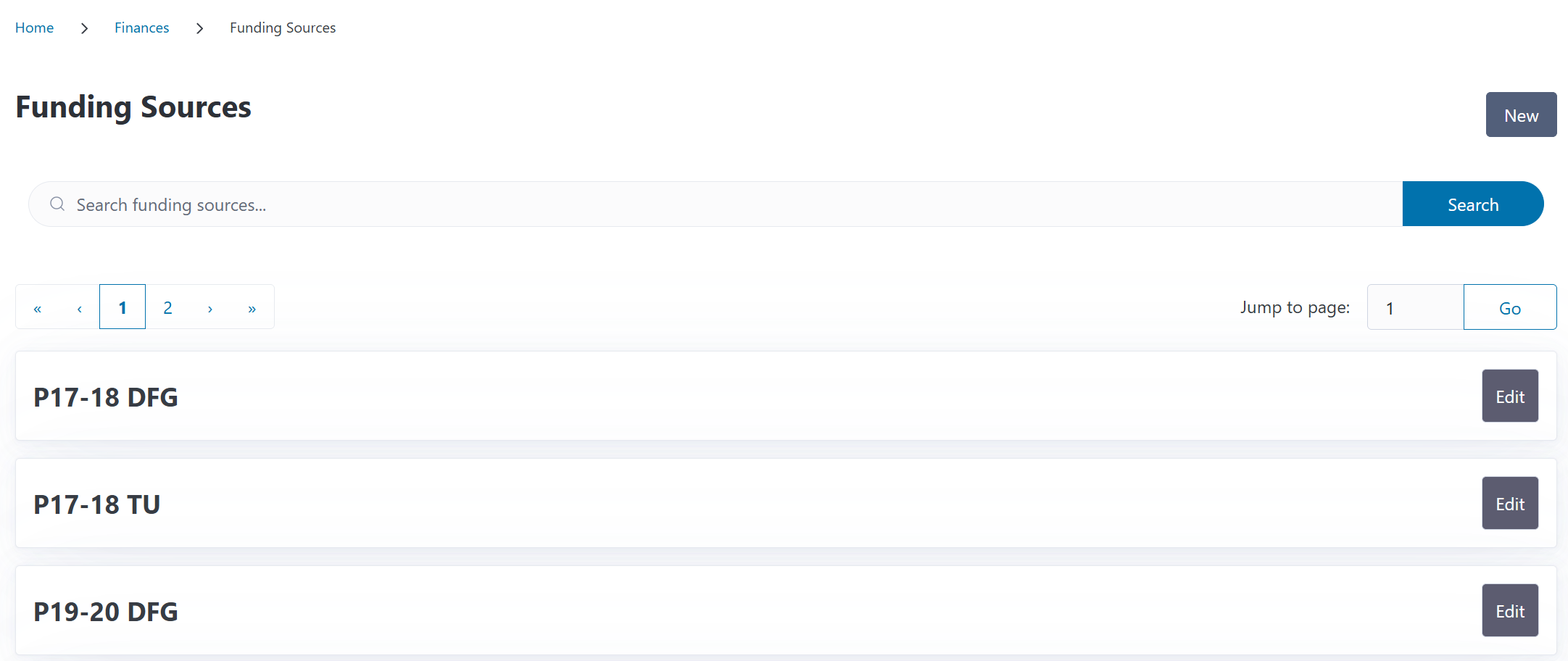
You can access the Funding Sources page from the Finances section in the navigation menu. The overview displays all funding sources in your system, showing their names with quick access to edit them.
You can search for funding sources by name using the search box at the top of the page.
Understanding Funding Sources#
Funding sources represent where money comes from to pay for publication costs. CODA supports two types of funding sources:
Budget-Type Funding Sources#
These are named budgets or accounts that you manage within your institution. Examples:
“Open Access Fund 2024”
“Chemistry Department Budget”
“Research Grant XYZ-12345”
“Central Library APC Fund”
Budget-type funding sources are the most common and are used to track how costs are distributed across your internal budgets.
Institution-Type Funding Sources#
These represent cost-sharing arrangements with affiliated institutions. When creating invoices, you can assign costs to specific institutions from your Institutions directory.
Institution-type funding sources are created automatically when you assign costs to institutions during invoice creation - you don’t create them manually on this page.
When to Use Each Type
Use Budget sources for:
Internal budget tracking
Grant or project-specific funding
Department budgets
Central APC funds
Use Institution sources for:
Cost-sharing with partner institutions
Collaborative funding arrangements
Multi-institutional publications
Creating a Funding Source#
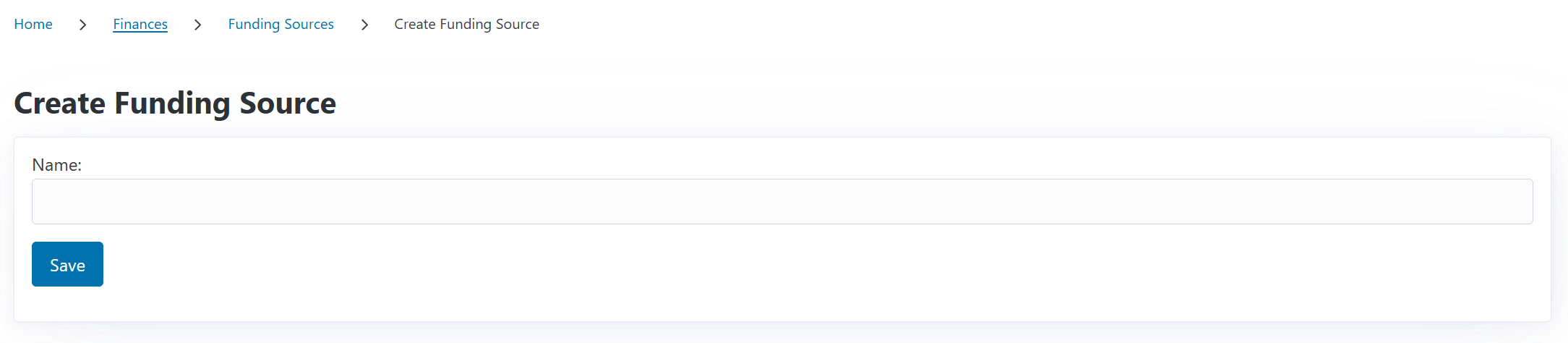
To add a new budget-type funding source:
Navigate to the Funding Sources page from the Finances section
Click the New button
Enter a descriptive Name (e.g., “Open Access Fund 2024”, “DFG Grant AB-123/4-1”)
Click Save
The funding source is now available when creating or editing invoices.
Editing a Funding Source#
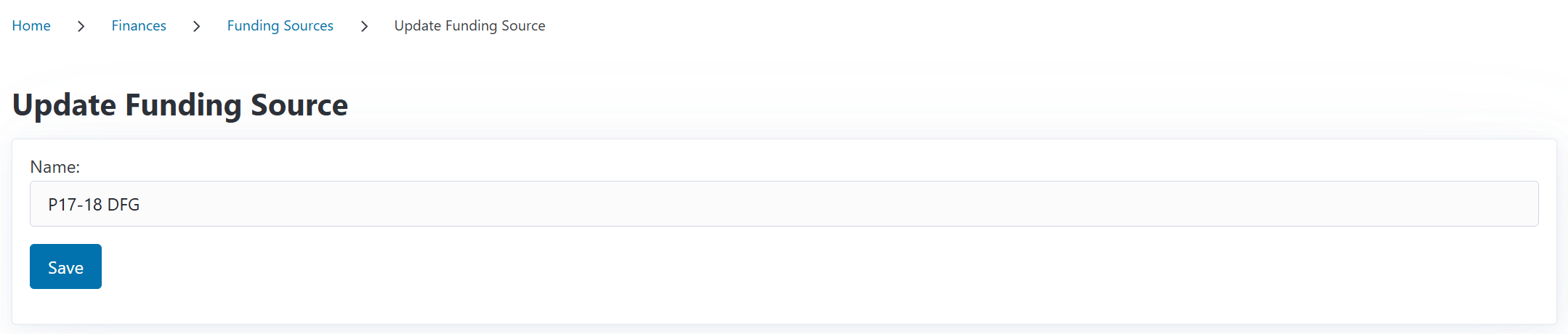
You can edit a funding source’s name at any time:
Navigate to the Funding Sources page
Click Edit next to the funding source you want to change
Update the Name
Click Save
All existing funding assignments will automatically reflect the new name.
Using Funding Sources in Invoices#
Funding sources become powerful when you assign them to invoice positions. This is done when creating or editing invoices.
Single Funding Source#
The simplest case: assign all costs for a position to one funding source.
Example: An APC of €2,000 paid entirely from your “Open Access Fund 2024”
Multiple Funding Sources (Cost Splitting)#
You can split costs across multiple funding sources. This is useful when:
Multiple departments share publication costs
Costs are partially covered by grants
You have collaborative funding arrangements
Example: An APC of €3,000 split between:
€2,000 from “DFG Grant AB-123/4-1”
€1,000 from “Institute General Budget”
Institution Cost-Sharing#
When your institution collaborates with partner institutions, you can assign costs to those institutions directly:
Example: An APC of €2,500 with cost-sharing:
€1,500 to your “Central OA Fund” (budget)
€1,000 to “Institute for Chemistry” (institution)
The institution-type funding source is created automatically based on the institution selected from your Institutions directory.