Vocabularies#
The Vocabularies feature allows you to manage controlled vocabularies used throughout CODA for categorizing publications. Vocabularies ensure consistency and standardization when recording publication metadata like subject areas and publication types.
Overview#
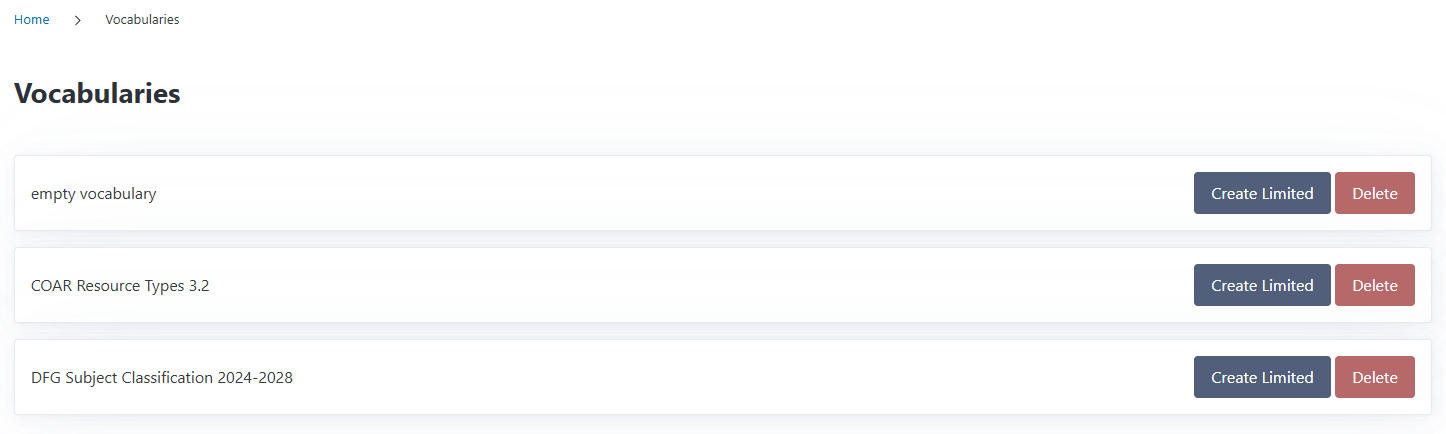
You can access the Vocabularies page from the navigation menu. The overview shows all available vocabularies in your CODA installation, including:
Base vocabularies: Complete, standardized vocabularies like COAR Resource Types and DFG Subject Classification
Limited vocabularies: Custom subsets you’ve created from base vocabularies
Each vocabulary entry displays its name, version, and action buttons for creating limited versions, editing, or deleting.
Understanding Vocabulary Types#
CODA supports two types of vocabularies:
Base Vocabularies#
Base vocabularies are complete, standardized taxonomies imported into CODA. They come from recognized standards organizations or research institutions.
Included:
COAR Resource Types: International standard for publication types
DFG Subject Classification: German Research Foundation’s academic discipline taxonomy
Base vocabularies are read-only - you cannot edit their concepts directly. However, you can create limited vocabularies based on them to customize what your users see.
Limited Vocabularies#
Limited vocabularies are custom subsets created from base vocabularies. They allow you to:
Hide irrelevant concepts: Remove publication types or subject areas that don’t apply to your institution
Simplify selection: Make it easier for users by showing only relevant options in the funding request dropdowns
Customize naming: Give your vocabulary a descriptive name that makes sense for your institution
Why “Limited” Vocabularies?
We call them “limited” because they restrict (or limit) the concepts from a base vocabulary to show only what you need. Think of it as creating a filtered view of a larger vocabulary.
Creating a Limited Vocabulary#
To create a custom vocabulary based on an existing one:
Click Create Limited next to any base or existing limited vocabulary
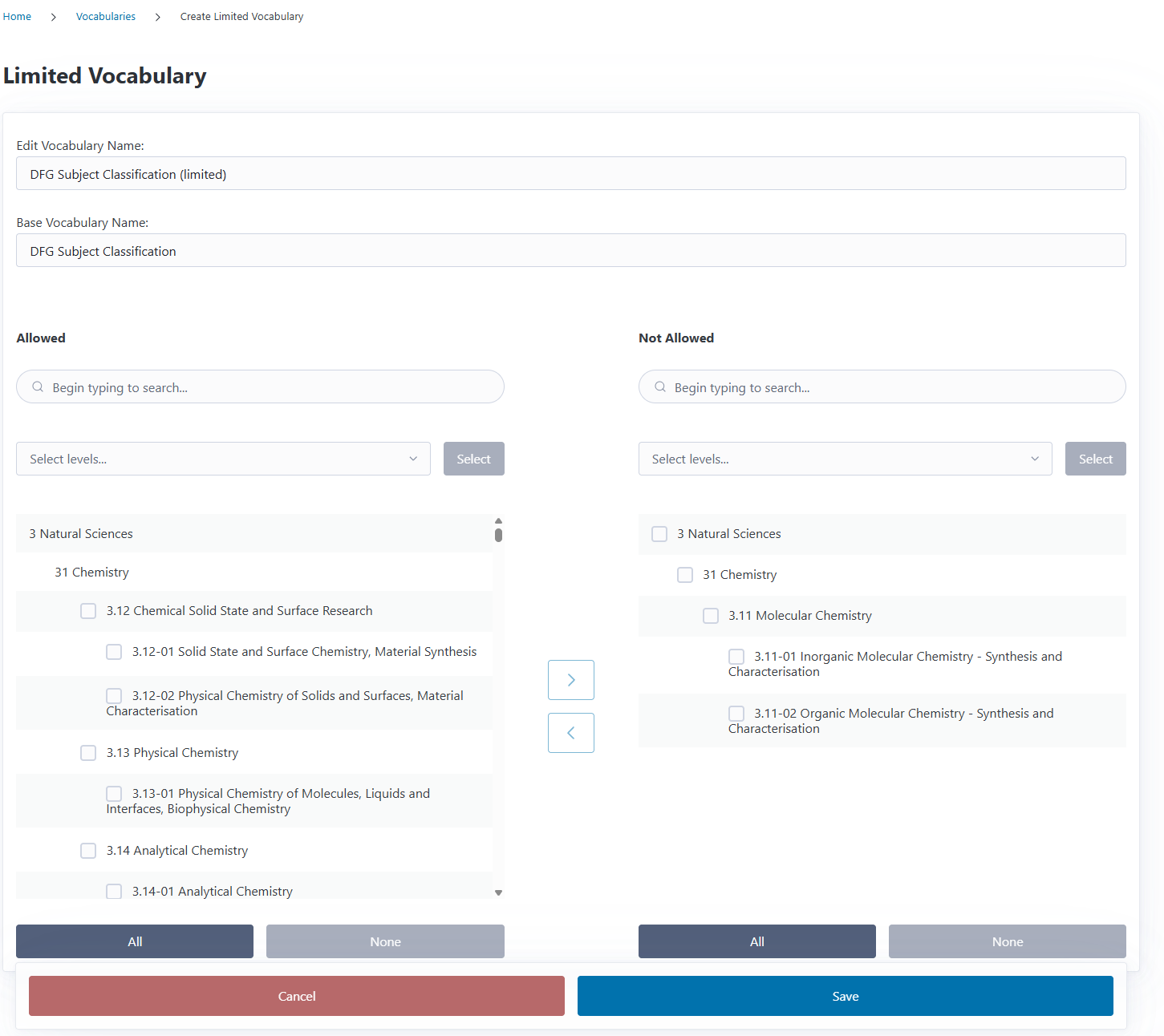
CODA will open the vocabulary editor showing all concepts from the base vocabulary in the Allowed column
Give your vocabulary a descriptive name
Move concepts you don’t want between the Allowed and Forbidden columns (see below)
Click Save to create your vocabulary
The Two-Column Interface#
The vocabulary editor uses a two-column layout:
Left column (Allowed): Concepts that will be available to users when selecting from this vocabulary
Right column (Forbidden): Concepts hidden from users (but preserved in case you want to re-enable them later)
You can tick the checkboxes and use the buttons between the two lists to move concepts from one list to the other. Furthermore, you can select one whole level at once or select all/none concepts from a list by using the additional control buttons above and below the two lists.
Moving Concepts Between Allowed and Forbidden#
There are several ways to customize which concepts appear in your vocabulary:
Moving Individual Concepts#
Select the checkbox next to one or more concepts
Click the → or ← button between the columns to move selected concepts
Moving Entire Levels#
You can work with entire hierarchy levels at once:
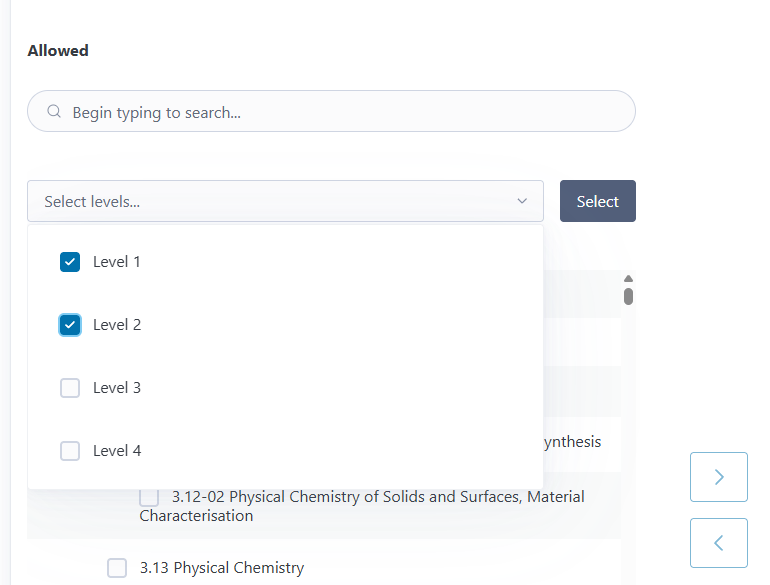
In either column, click Select levels…
Check the boxes for the levels you want to select
Click Select to highlight all concepts at those levels
Use the arrow buttons to move them between columns
This is particularly useful for vocabularies with deep hierarchies when you want to keep only top-level categories or hide very specific subconcepts.
Tip
Start by moving large structural nodes (high levels) to quickly shape your vocabulary, then fine-tune by moving individual concepts back if needed.
Editing an Existing Limited Vocabulary#
To modify a limited vocabulary you’ve already created:
Click Edit next to the vocabulary on the overview page
Update the vocabulary name if desired
Move concepts between Allowed and Forbidden columns as needed
Click Save to apply your changes
Note
Changes to vocabularies take effect immediately. New funding requests will show the updated concept list. Existing publications keep their current classifications and are not affected.
Deleting a Vocabulary#
You can delete limited vocabularies you no longer need:
Click Delete next to the vocabulary
CODA will check if the vocabulary is in use:
If not in use: The vocabulary is deleted immediately
If in use: CODA shows which publications would be affected and asks for confirmation
What Happens When You Delete a Used Vocabulary?#
If the vocabulary is currently selected in Preferences or used by publications:
CODA will migrate affected publications to use the base vocabulary instead
This ensures data integrity - publications won’t lose their classifications
After migration, the limited vocabulary is deleted
Safety First
CODA protects your data by automatically migrating publications to the base vocabulary before deletion. However, it’s good practice to review the usage information before confirming deletion.
Using Vocabularies in CODA#
Once you’ve created limited vocabularies, they become available throughout CODA:
In Preferences#
Go to Preferences to select which vocabularies should be used by default when creating funding requests:
Subject Classification Vocabulary: Controls subject area options
Article Publication Type Vocabulary: Controls article type options
Monograph Publication Type Vocabulary: Controls book/monograph type options
In Funding Requests#
When creating a funding request, users select from your chosen vocabularies:
Publication type: Shows concepts from your article or monograph vocabulary (depending on publication format)
Subject area: Shows concepts from your subject classification vocabulary
The concepts available in these dropdowns are determined by which vocabularies you’ve selected in Preferences.
Base Vocabulary Updates#
CODA comes with standard vocabularies (COAR, DFG) that may be updated when new versions are released:
When base vocabularies are updated:
Your limited vocabularies continue to reference the original base version
New concepts in updated base vocabularies won’t automatically appear in your limited vocabularies
You can create a new limited vocabulary based on the updated version if you want to include new concepts
This ensures your carefully curated limited vocabularies remain stable even when standard vocabularies evolve.