Creating Users#
After setting up CODA and creating a superuser, you can add additional users who will be able to access and work with CODA. This guide explains how to create regular users through the administration interface.
Prerequisites
You must be logged in as a superuser to create new users. See the Installation guide for instructions on creating a superuser.
Accessing the User Management Interface#
Navigate to the CODA administration by adding
/admin/to the url (e.g.https://www.my-coda-url.com/admin/)Log in to CODA using your superuser credentials
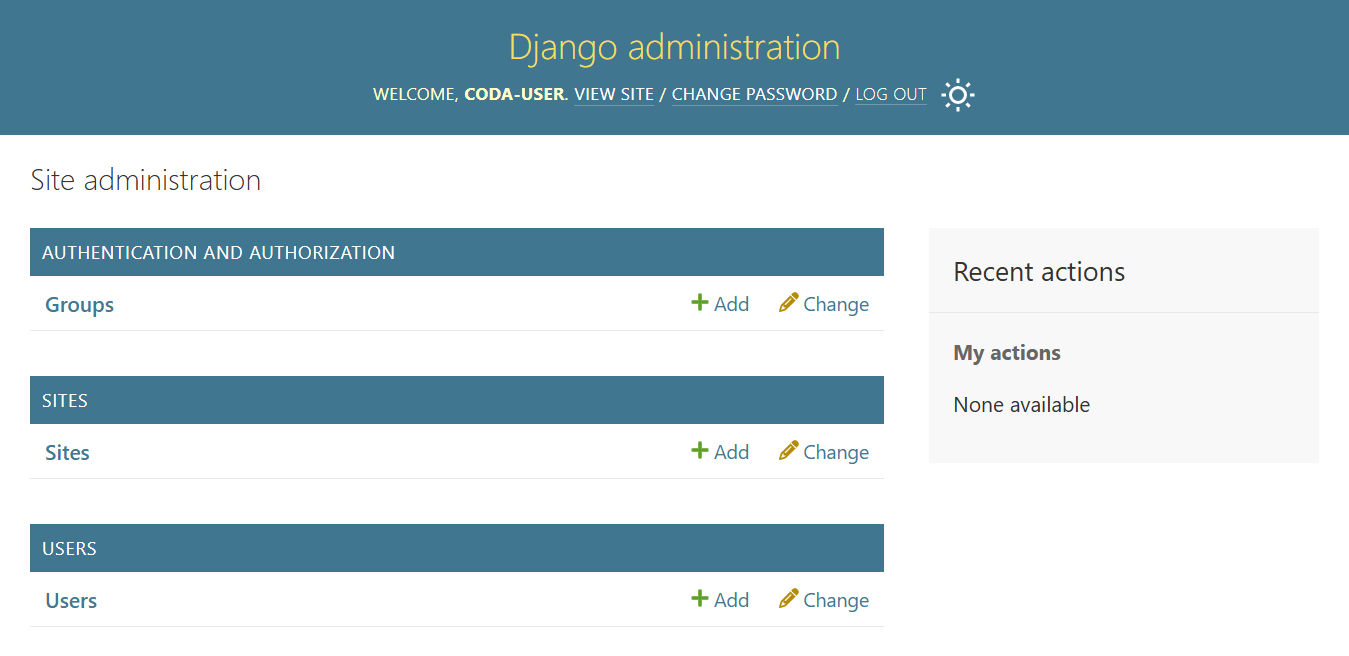
You are redirected to the site administration of CODA
In the administration panel, locate the “Users” section
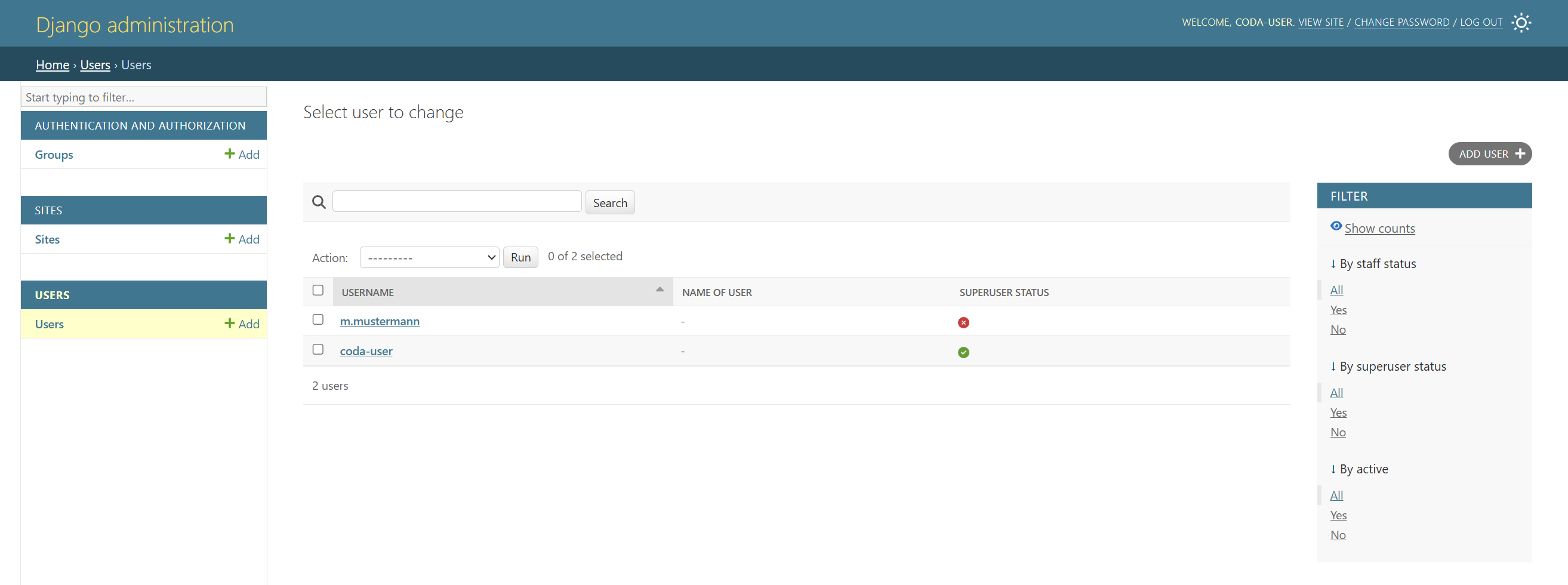
Click on “Users” to access the user management interface
Creating a New User#
To create a new user:
Click the “Add user” button in the top-right corner of the Users list
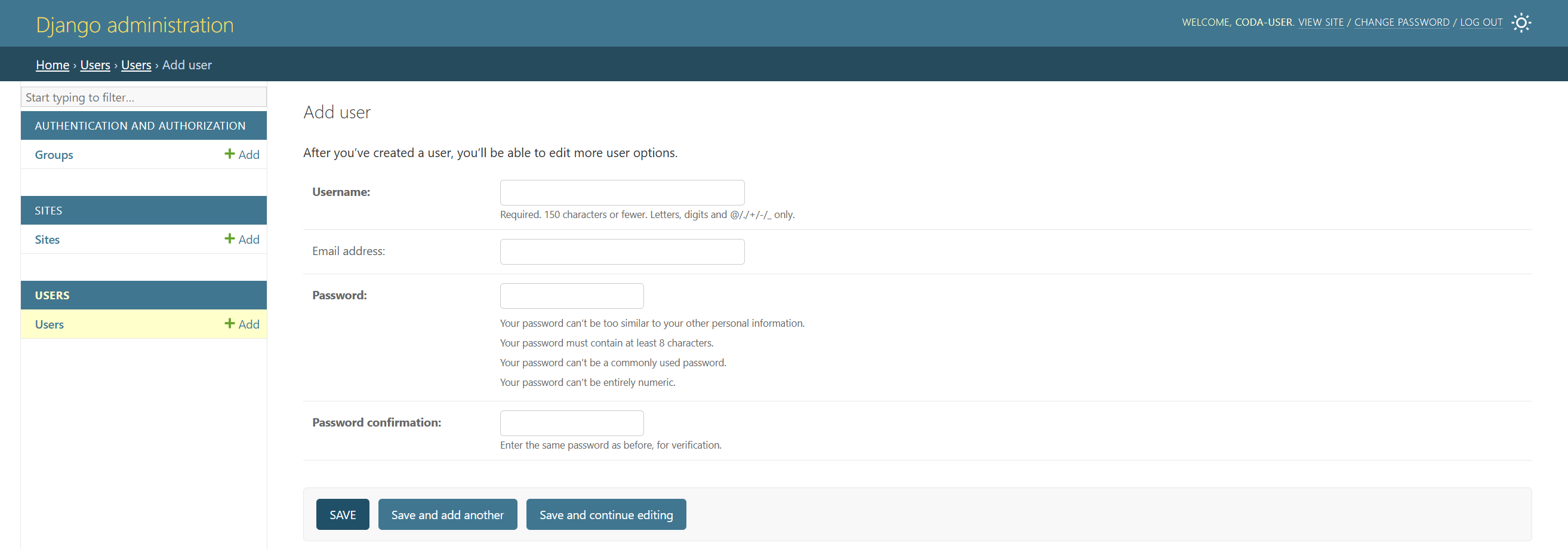
Fill in the required information:
Username: Choose a unique username for the new user
Email: Adding an Email address is optional
Password: Enter a secure password
Password confirmation: Re-enter the password to confirm
Click “Save” to create the user
After saving, you’ll be taken to the detailed user edit page where you can configure additional settings.
Configuring User Permissions#
Once the basic user is created, you can configure additional details and permissions:
Personal Information#
First name: The user’s first name
Last name: The user’s last name
Email address: The user’s email address
Permissions#
Configure the user’s access level:
Active: This checkbox must be selected for the user to be able to log in
Staff status: Allows the user to access the admin interface
Superuser status: Gives the user all permissions without explicitly assigning them (use with caution)
Groups and Specific Permissions#
Groups: Assign the user to groups for easier permission management
User permissions: Assign specific permissions for fine-grained access control
Important
Currently, CODA provides basic group and user assignment functionality. While users can be organized into groups and permissions can be defined at a technical level, a comprehensive permission management system has not yet been fully designed or implemented. As a result, users effectively have unrestricted access within the application at this stage. A more meaningful user management will be part of future development.
Resetting User Passwords#
If a user forgets their password, a superuser can reset it:
Go to the administration interface
Navigate to Users
Click on the user whose password needs to be reset
In the Password section, click “reset password” to set a new password
Enter the new password twice and click “change pasword”
Managing Existing Users#
You can modify existing users at any time:
Access the administration interface
Navigate to Users
Click on the username you want to modify
Make the necessary changes
Click “Save” to apply the changes
Deactivating Users#
Instead of deleting users, it’s recommended to deactivate them:
Open the user’s profile in the administration interface
Uncheck the “Active” checkbox
Save the changes
This preserves the user’s history and associated data while preventing them from logging in.