CSV Export#
The CSV Export feature allows you to export funding request data with publication, invoice, and cost information for analysis in spreadsheet applications like Excel or LibreOffice Calc. This enables for annual reporting, budget tracking, custom analyses, and data sharing.
Overview#
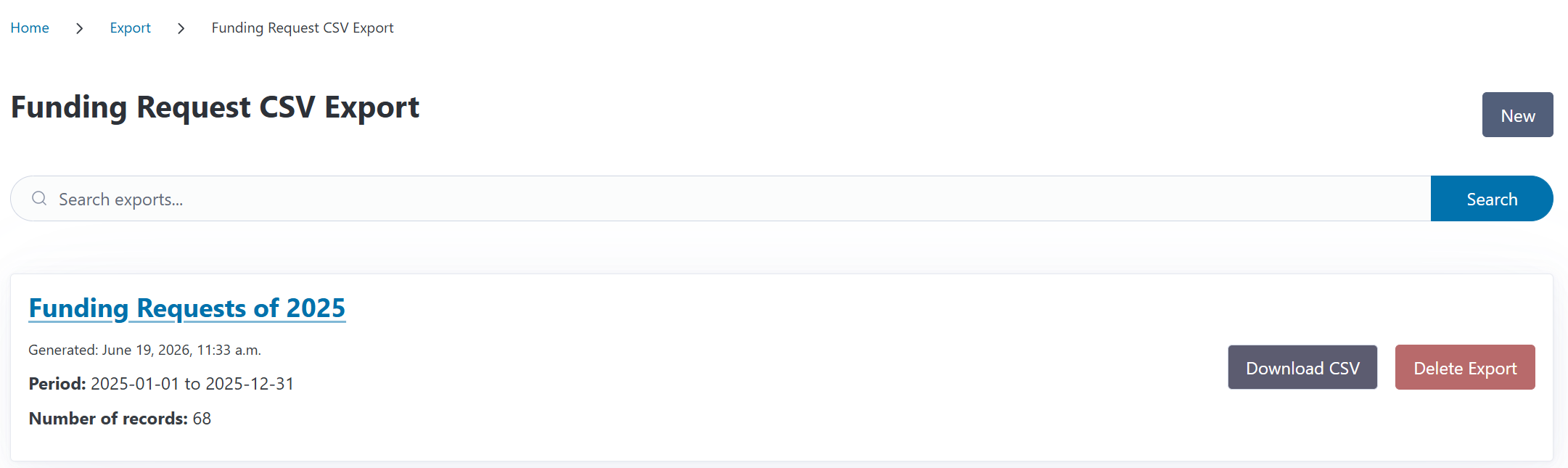
You can access the CSV Export feature from the Export page in the navigation menu. From there, click View on the Funding Request CSV Export card to see your previously generated exports.
The export list page displays all exports you have created, showing:
Export name and generation date
Reporting period (start and end dates)
Number of records included
Action buttons for viewing details and downloading
Note
CSV exports are generated from your current data, which is stored into snapshots. If you edit data in your CSV export, the snapshot will remain as it is, including an older version of your data.
Understanding CSV Export Data#
The CSV export provides a detailed view of your funding requests including cost data, if any, with one row per funding assignment. This means:
A publication with a single invoice position and no cost splitting appears as one row
A publication with cost splitting across multiple funding sources appears as multiple rows (one per assignment)
This structure enables precise budget tracking and cost split analysis.
What Data Is Exported#
The CSV file includes the following categories of information:
Funding Request Details:
Request ID and legacy request ID
Request date
Estimated cost and currency
Payment method
Review result and remarks
Decided funding amount and currency
Labels
Publication Information:
Publication title
DOI, ISBN, Handle, and other identifiers
Journal name, publisher name, E-ISSN
License and open access type
Publication type and subject area
Authors
Corresponding author, including name, affiliation, and the affiliation’s internal ID
Publishing state and dates (online, print)
External Funding (for externally funded publications):
External funding — one entry per funding organization, combined into a single column in the format
Organization (Project ID – Project Name)Publications with several funding organizations list all of them, separated by
|(sorted by organization name), for example:BMBF (456 – Cancer Research) | DFG (123 – Awesome Project)
Invoice Information:
Invoice number and date
Creditor name
Invoice status (paid, unpaid, rejected)
Invoice currency and comment
External invoice ID
Position Details:
Position amount, tax rate, and cost type
Position type (publication, contract, free)
Contract name and year (for contract positions)
Position description (for free positions)
Funding Assignment Information:
Funded amount
Funding source name and type (budget or institution) — for institution funding sources, the institution’s name is shown
Analyzing costs by institution
Use the corresponding author’s affiliation columns to evaluate costs per institution (e.g. “how much did we cover for faculty X?”). Match the corresponding_author_affiliation_internal_id against the institution structure export (available from the Institutions page), which provides the internal ID, name, and parent for every institution — this lets you analyze costs at any level of the institution hierarchy.
Note: institutions receive their internal ID when the institution structure is exported or if the internal ID was already part of the import. Internal IDs can also be set manually when editing institutions. For more information check out the institutions documentation. Export the institutions once first so that all of them have an ID available for matching.
Creating a New CSV Export#
To create a new CSV export:
Navigate to the Export page from the navigation menu
Click View on the Funding Request CSV Export card
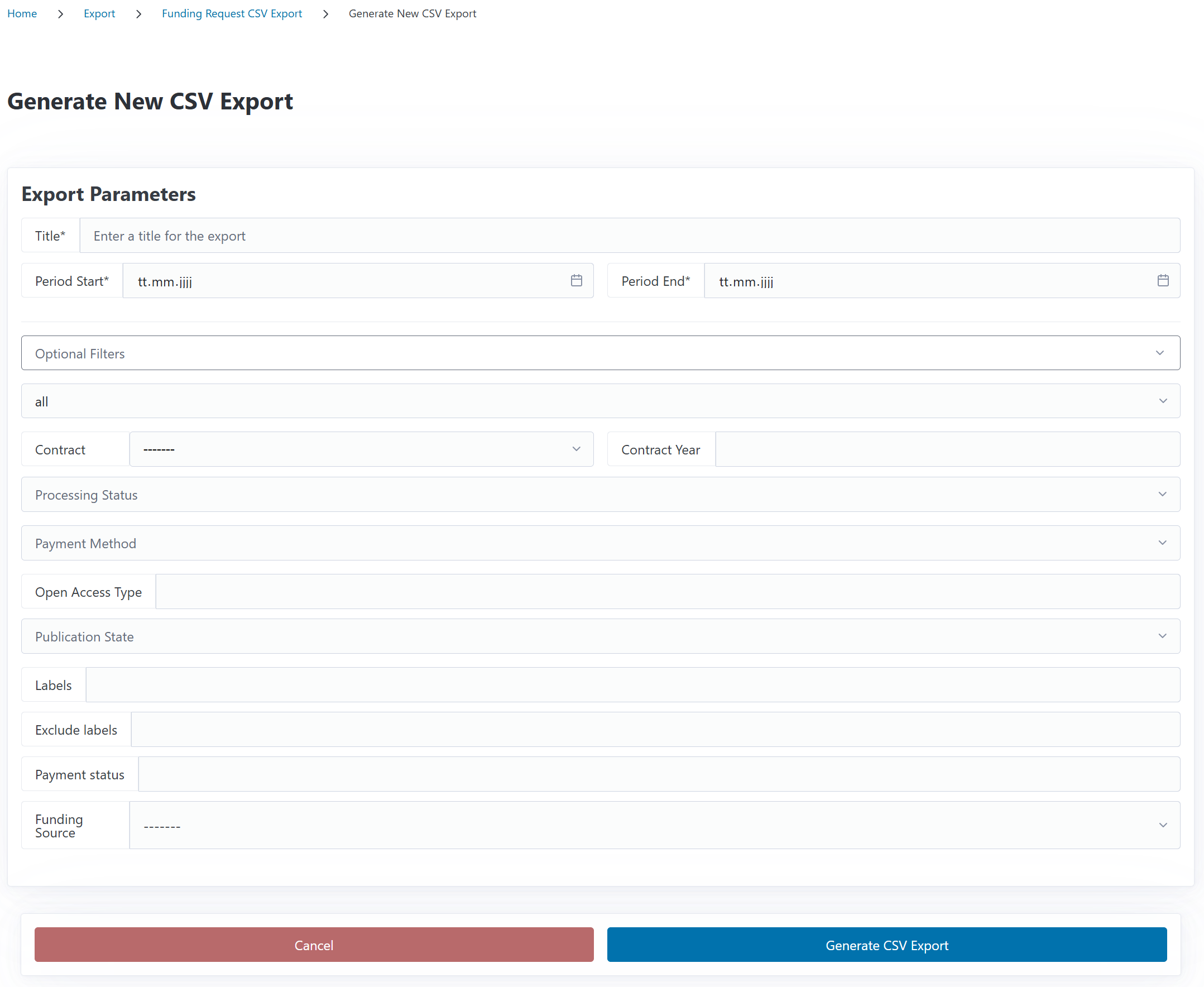
Click the New button on the export list page
Enter a name for your export
Select the reporting period by choosing start and end dates (refers to the request date)
Apply any desired filters to narrow down the data (see below)
Click Create Export
CODA will gather all funding requests that match your filters and create the export. You will be redirected to the export detail page showing a preview of the data.
Filtering Options#
You can combine multiple filters to precisely control which funding requests are included in your export. The following filters are available:
Review Result: Filter by review status (Open, Approved, Rejected, Costs Waived, Closed)
Labels: Include or exclude specific labels
Payment Method: Direct, Reimbursement, or Unknown
Open Access Type: Gold, Diamond, Hybrid, etc.
Publication State: Published, Submitted, Accepted, Rejected, Unknown
Publication Type: Article or Monograph
Payment Status: Paid, Unpaid, Covered by Contract or Invoice Received
Funding Source: Filter by specific funding source
Tip
Filters control which rows appear in your export, but all columns are always included. This ensures you get a complete dataset for your analysis.
Viewing Export Details#
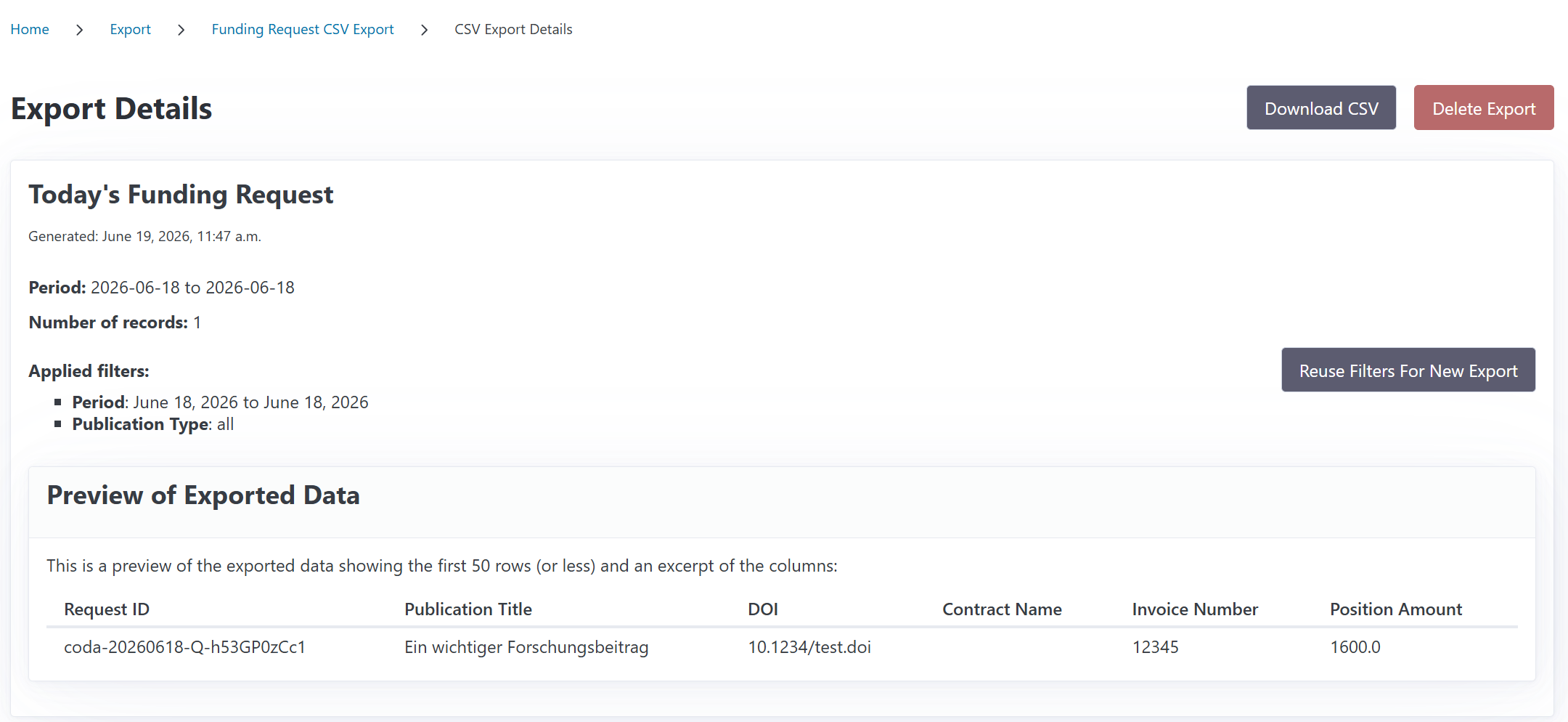
Clicking on an export from the list page shows you detailed information including:
Export name and generation date
Reporting period (start and end dates)
Number of records included
Applied filters — a list of all filters that were used when creating this export
Preview — a table showing the first 50 rows of exported data (or fewer if the export contains less data)
The preview displays a selection of key columns to help you verify the data structure before downloading:
Request ID
Publication Title
DOI
Contract Name
Invoice Number
Position Amount
From the detail page, you can:
Download the CSV file
Reuse the filters to create a new export with the same criteria
Delete the export
Note
The preview only shows the first 50 rows and a subset of columns. Download the full CSV file for complete data.
Downloading the CSV File#
To download a CSV export:
Navigate to the export list view or the specific export’s detail page
Click the Download CSV button
The CSV file will be saved to your device
CSV Format Details#
Separator: Semicolon (
;)Encoding: UTF-8
Header row: Column names are included as the first row
One row per funding assignment: Enables detailed cost tracking
Opening in Excel
When opening the CSV file in Excel, you may need to:
Use Data → From Text/CSV to import the file
Select Semicolon as the delimiter
Choose UTF-8 encoding
Reusing Export Filters#
If you need to create a new export with the same filters:
Open the existing export’s detail page
Click the Reuse Filters For New Export button
The create form opens with all filters pre-filled (excluding the title and period)
Adjust the reporting title, period or filters as needed
Click Create Export
This is useful for generating regular reports (e.g., monthly or quarterly) with consistent filtering criteria.
Deleting Exports#
If you no longer need an export record:
Open the export list view or the specific export’s detail page
Click the Delete Export button
Confirm the deletion when prompted
Warning
Deleting an export only removes the export. It does not affect your funding requests, invoices, or any other data in CODA.